Your Shopify dashboard shows €13,185 in total sales, but your accountant needs the records behind €10,500 in product revenue. Which number should you send? Choosing the larger figure can overstate product revenue. A screenshot leaves your accountant without the supporting orders, costing you another evening of preparation.
LedgerLeaf turns that review into a file you can hand over. Read the sales figures, then use its Sales workspace to prepare the order records your accountant needs and save the column selection for next month.
Leafy’s Quick Answer
Start with net sales for product revenue after discounts and sales reversals. Gross sales show demand before reductions. Total sales include shipping, taxes, duties, and additional fees. LedgerLeaf lets you save and reuse the supporting export.
What gross, net, and total sales mean
Shopify’s analytics field reference distinguishes the three measures.
| Number | Calculation | Question it answers |
|---|---|---|
| Gross sales | Product price × quantity before discounts and sales reversals | What sold before reductions? |
| Net sales | Gross sales − discounts − sales reversals | What product revenue remains? |
| Total sales | Net sales + shipping + taxes + duties + additional fees | What is the wider sales value? |
Suppose your store records €12,000 in gross sales, €900 in discounts, and €600 in sales reversals. Net sales are €10,500. With €480 in shipping and €2,205 in tax, total sales become €13,185. This example has no duties or additional fees.
The €2,685 between net and total is shipping and tax. The €1,500 between gross and net is the reduction to explain before judging a promotion.
Net sales are not profit. Product costs and expenses still matter.
Build the supporting file in LedgerLeaf
Shopify’s native sales reports separate these measures, but a dashboard total is a poor accountant handoff. Its standard order export supplies CSV and leaves you to trim columns. Repeating that cleanup adds work every month.
In Sales in LedgerLeaf, use Edit filters to select the completed month. Check the overview dates and keep payment and country filters consistent. Filtering only paid orders changes the scope because Shopify’s sales reports can include unpaid and canceled orders.
Choose the columns that will let your accountant trace an unfamiliar figure.
| LedgerLeaf fields | What they make easier to check |
|---|---|
| Order name and order ID | Locate the original sale or adjustment |
| Year, month, and day | Check which period the order belongs to |
| Currency | Keep amounts in different currencies separate |
| Total gross and total tax | Review recorded amounts alongside their tax detail |
| Country, when needed | Identify the destination behind a tax question |
An order export and an analytics report use different reporting logic. Do not simply relabel Total gross as Shopify Analytics’ Gross sales. Agree the fields with your accountant and use order references to explain differences.
Save the selection in Column presets as “Monthly sales review,” then choose Export XLSX for an Excel handoff or Export CSV for an import. LedgerLeaf’s overview shows Total orders separately from Rows in preview, so spreadsheet row counts do not get mistaken for order counts.
For the €13,185 example, send the selected order detail with a short note showing €10,500 net sales, €480 shipping, and €2,205 tax. The summary explains the figures. The LedgerLeaf file supplies the evidence for follow-up questions. Next month, reuse the preset and change the period.
Use the review to make better decisions
Keep the business question beside the file.
- Is product revenue improving? Compare net sales for equivalent periods, with discounts and reversals visible. Growing gross sales can hide heavier reductions.
- What should I reorder? Check net sales and net quantity by product or variant. Shopify’s product reports exclude shipping, so compare product performance on that basis.
- Did more orders or larger baskets drive growth? Shopify’s average order value uses
(gross sales − discounts) ÷ orders, excluding later adjustments. It is not total sales divided by orders. - Why did this month fall? Reversals are recorded when processed. If an earlier order was adjusted this month, add its reference and both dates to your LedgerLeaf handoff note. Shopify’s discrepancy guidance explains the timing differences.
Leafy’s Watch-Out
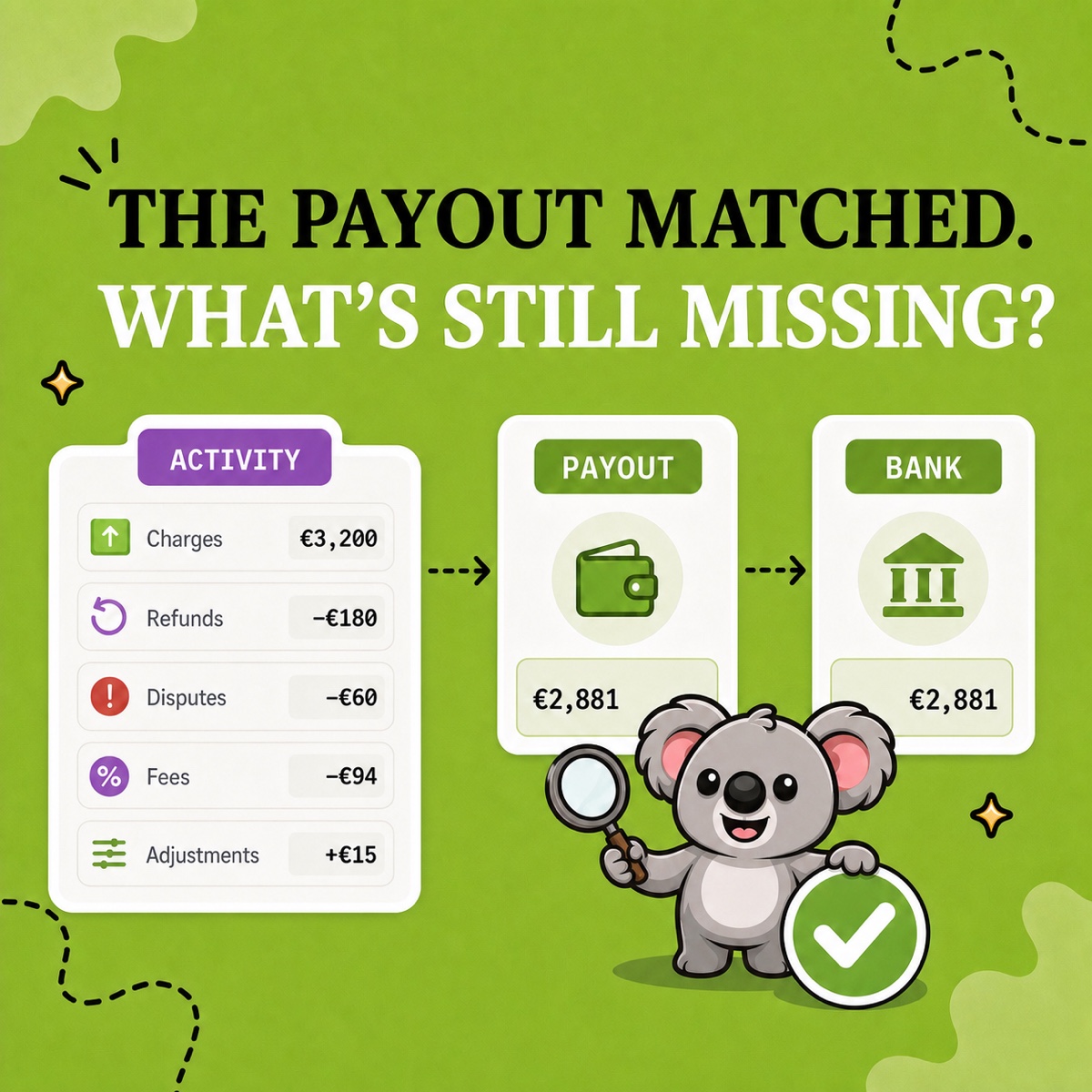
Sales reports do not track when cash reaches you and do not include chargebacks. For a bank-deposit question, use LedgerLeaf Pro’s Shopify Payments payout reports alongside the sales review rather than forcing a sales total to match the deposit.
Keep the monthly review simple and affordable
LedgerLeaf’s free plan includes the custom CSV and XLSX exports and saved profiles used here. Setup is easy inside Shopify admin, with no separate account or external connection.
Matrixify’s Demo limits orders to 10 per file, while Basic costs US$20 per month. That is poor value for this recurring handoff, which LedgerLeaf provides free. Pro adds payout and VAT reports for US$5.90 per month when needed. Prices checked October 9, 2026.
Install LedgerLeaf free and save a sales-review preset for your latest completed month.