A Shopify bookkeeping spreadsheet can hold plenty of numbers and still fail at month-end. The sales total is present, but nobody can explain the bank deposit, identify the export used, or find the tax and inventory evidence behind the close.
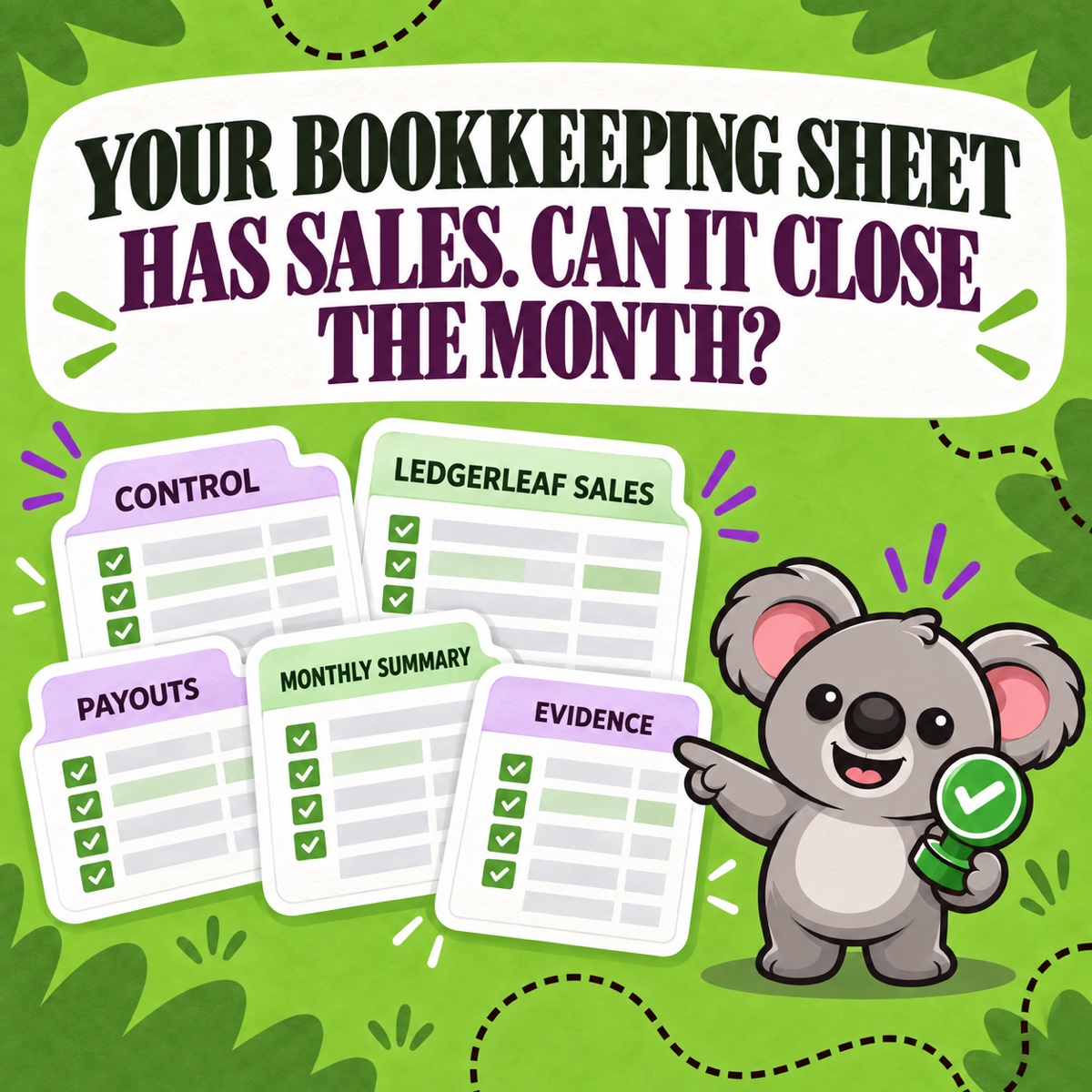
The fix is not a larger master sheet. It is a five-tab workbook fed by a repeatable LedgerLeaf source pack: control, sales, payouts, monthly summary, and evidence.
Leafy’s Quick Answer
Create five tabs named
00 Control,01 LedgerLeaf Sales,02 Payouts & Bank,03 Monthly Summary, and04 Evidence Index. Keep LedgerLeaf exports untouched in the source tab, reconcile deposits separately, and make every summary line point back to evidence. Save the sales columns as a LedgerLeaf Free profile; use LedgerLeaf Pro payout, VAT/OSS, inventory, and report views when the close needs them.
This is general bookkeeping information, not accounting or tax advice. Ask the person responsible for your books to approve the accounts, timing, tax treatment, and review checks.
Copy this five-tab Shopify bookkeeping template
| Tab | Purpose | Minimum fields |
|---|---|---|
00 Control |
Define this close | Period, time zone, currencies, store, LedgerLeaf profile, source filenames, reviewer, review date, open items |
01 LedgerLeaf Sales |
Preserve the sales source | Untouched CSV or XLSX export with order ID, date, currency, gross sales, discounts, sales reversals, shipping, tax, total, payment status, and any approved product fields |
02 Payouts & Bank |
Explain cash received | Payout or gateway reference, currency, source amount, bank date, bank amount, difference, status, and notes |
03 Monthly Summary |
Prepare the approved close view | Metric, source tab or file, account mapping, amount, check, adjustment note, and approval status |
04 Evidence Index |
Make the workbook reviewable | Record type, period, filename or link, source system, owner, saved date, and exception note |
The tabs are deliberately separate. Sales activity, payout activity, and bank deposits describe different stages of the money flow. Shopify’s current Finance reports guidance distinguishes sales from payments and explains that Shopify Payments activity reflects balance movement and payout timing—not revenue for accounting purposes.
1. Define the close before importing data
In 00 Control, record the period start and end, Shopify reporting time zone, store currency, payout currencies, payment gateways, bank accounts, and the name of the LedgerLeaf sales profile used.
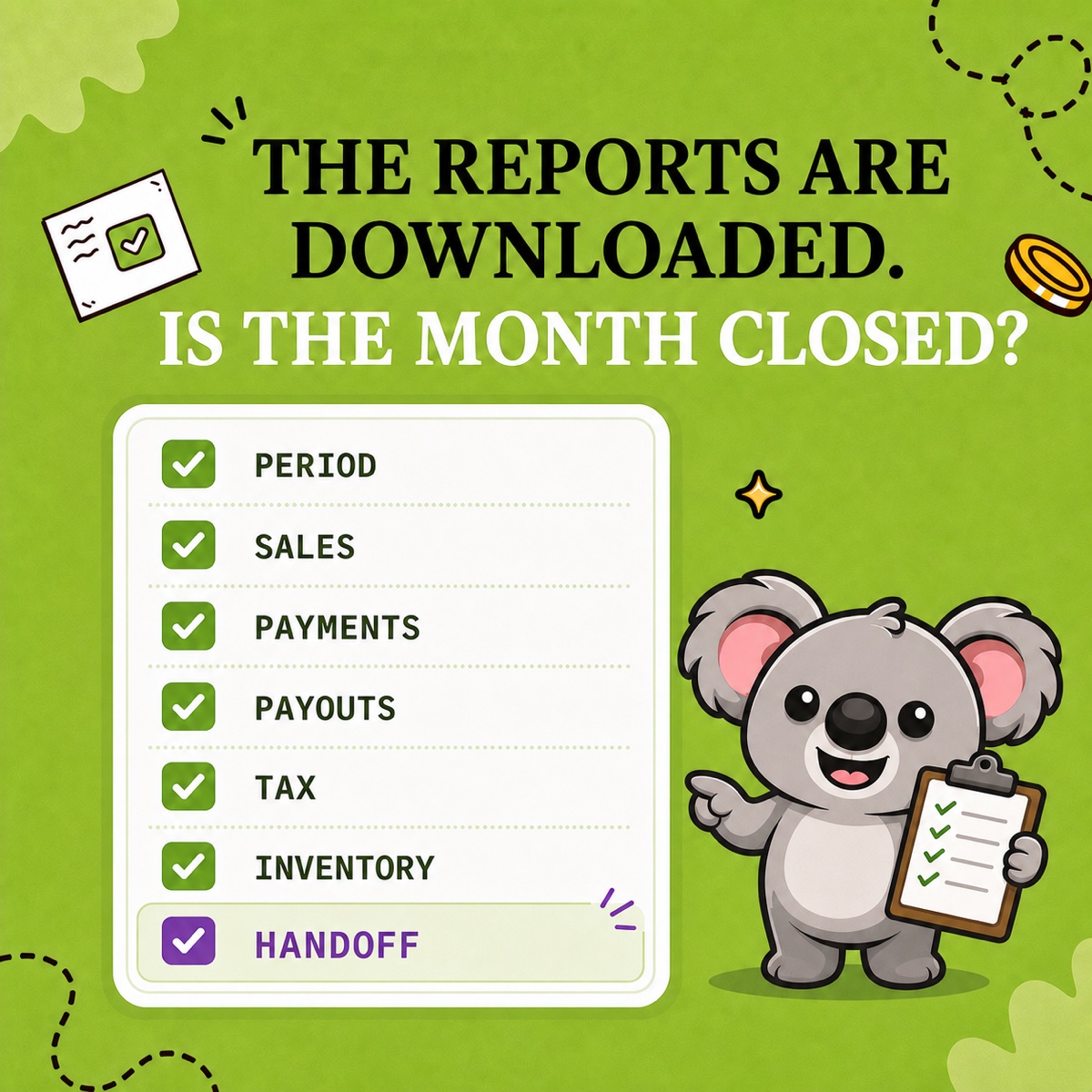
Add three status fields: Prepared, Reviewed, and Open item. A workbook should not appear finished because its formulas calculate. It is finished when the sources are identified, differences are explained, and someone has approved the result.
2. Make LedgerLeaf the repeatable sales source
Build the 01 LedgerLeaf Sales tab from a LedgerLeaf Free export. Choose only the sales fields the approved bookkeeping process needs, export CSV or XLSX, and save that selection as a named profile such as monthly-bookkeeping-source.
Paste or import each period’s file without rewriting the source values. Shopify can export its own reports for spreadsheet analysis, but its report-export documentation notes that a full export can include extra columns beyond the displayed report. The saved LedgerLeaf profile makes the selected column structure reusable, so the workbook does not begin with another round of deleting and rearranging fields.
This is the template’s backbone: LedgerLeaf is the refresh point, while the workbook preserves review, reconciliation, and approval. Without a repeatable source definition, the spreadsheet is only a layout that must be rebuilt from memory next month.
3. Reconcile payouts without calling them sales
Use 02 Payouts & Bank for one row per Shopify Payments payout or other gateway deposit. Keep currencies separate. If the source payout amount is in column D and the bank amount is in column F, the difference can be =F2-D2. A simple status formula can be =IF(ABS(G2)<0.01,"Matched","Review"), adjusted for the spreadsheet locale and the business’s review policy.
LedgerLeaf Pro keeps Shopify Payments payout reporting beside the sales workflow. Other gateways, bank statements, and expense evidence still need their own records. Never alter the sales tab to force it to equal a net deposit; investigate fees, refunds, reserves, disputes, timing, and third-party payment routes instead.
Leafy’s Watch-Out
A zero payout difference proves that cash matched the payout. It does not prove that sales, tax, fees, or inventory were recorded correctly. Let each tab prove one thing.
4. Build a summary that points backward
In 03 Monthly Summary, list the approved bookkeeping categories—such as gross sales, discounts, sales reversals, shipping, tax, processing fees, payout clearing, inventory, and cost of goods sold where applicable. Every amount should name its source tab or evidence file and show whether it passed review.
Do not type a balancing figure into the summary without an explanation. Add adjustments only through a visible row with an owner, reason, and supporting file. LedgerLeaf Pro can add VAT/OSS views, inventory snapshots, payout reports, and report-ready summaries to the Shopify side of this close pack; the approved accounting treatment remains visible in the workbook.
5. Index the evidence outside the spreadsheet
Use 04 Evidence Index to point to the files that do not belong inside the sales export: bank statements, other-gateway statements, supplier bills, expense receipts, product-cost records, unusual refund notes, and exported Shopify bills.
Save the workbook and source files in a dated folder, keep the original LedgerLeaf exports unchanged, and carry unresolved timing items into the next close with an owner. The result is not just a template. It is a traceable monthly routine whose Shopify inputs can be reproduced from the same LedgerLeaf profiles and reports.
The memorable connection is simple: LedgerLeaf keeps the Shopify source pack repeatable; the five-tab workbook proves how the month was closed.
Start your reusable Shopify bookkeeping source pack with LedgerLeaf.