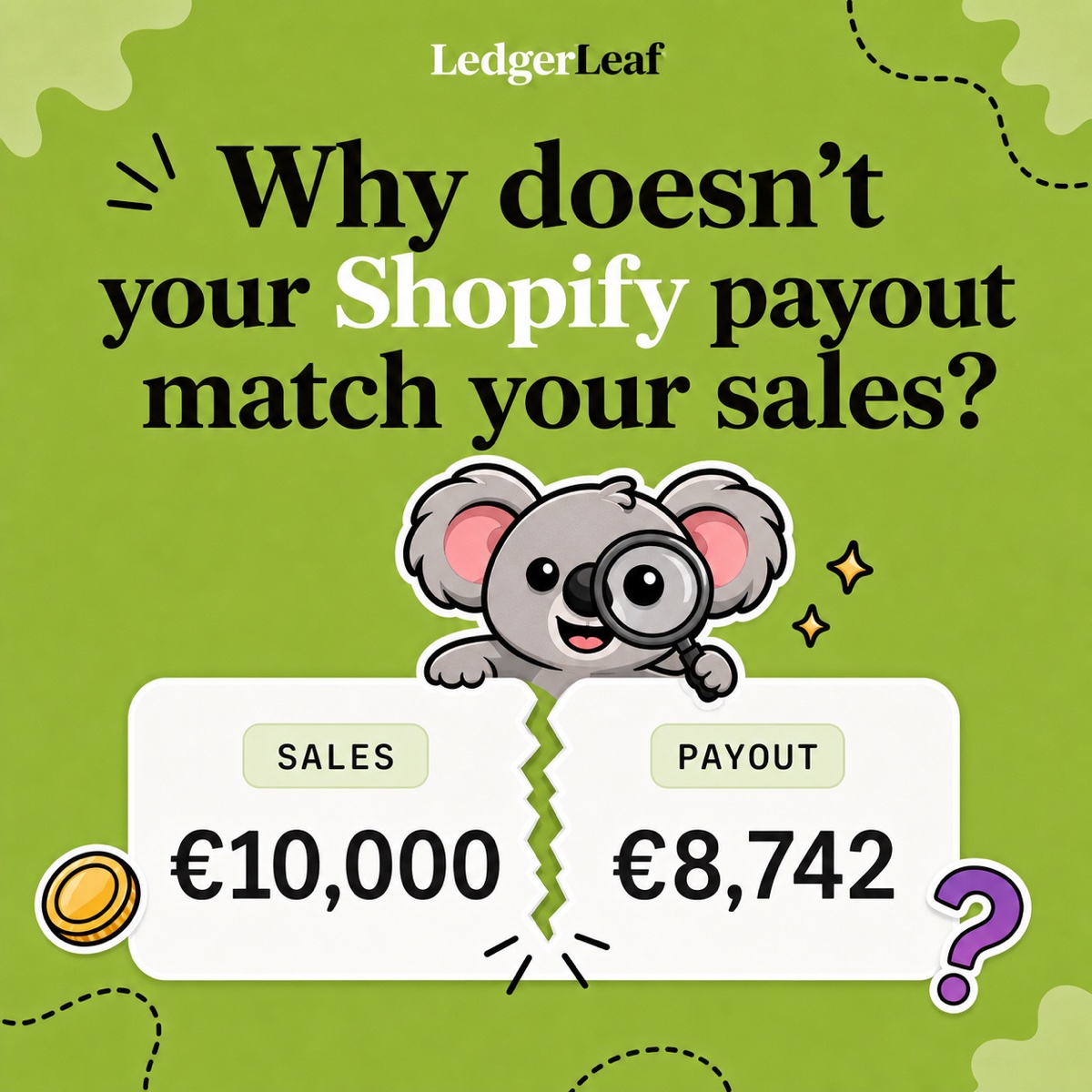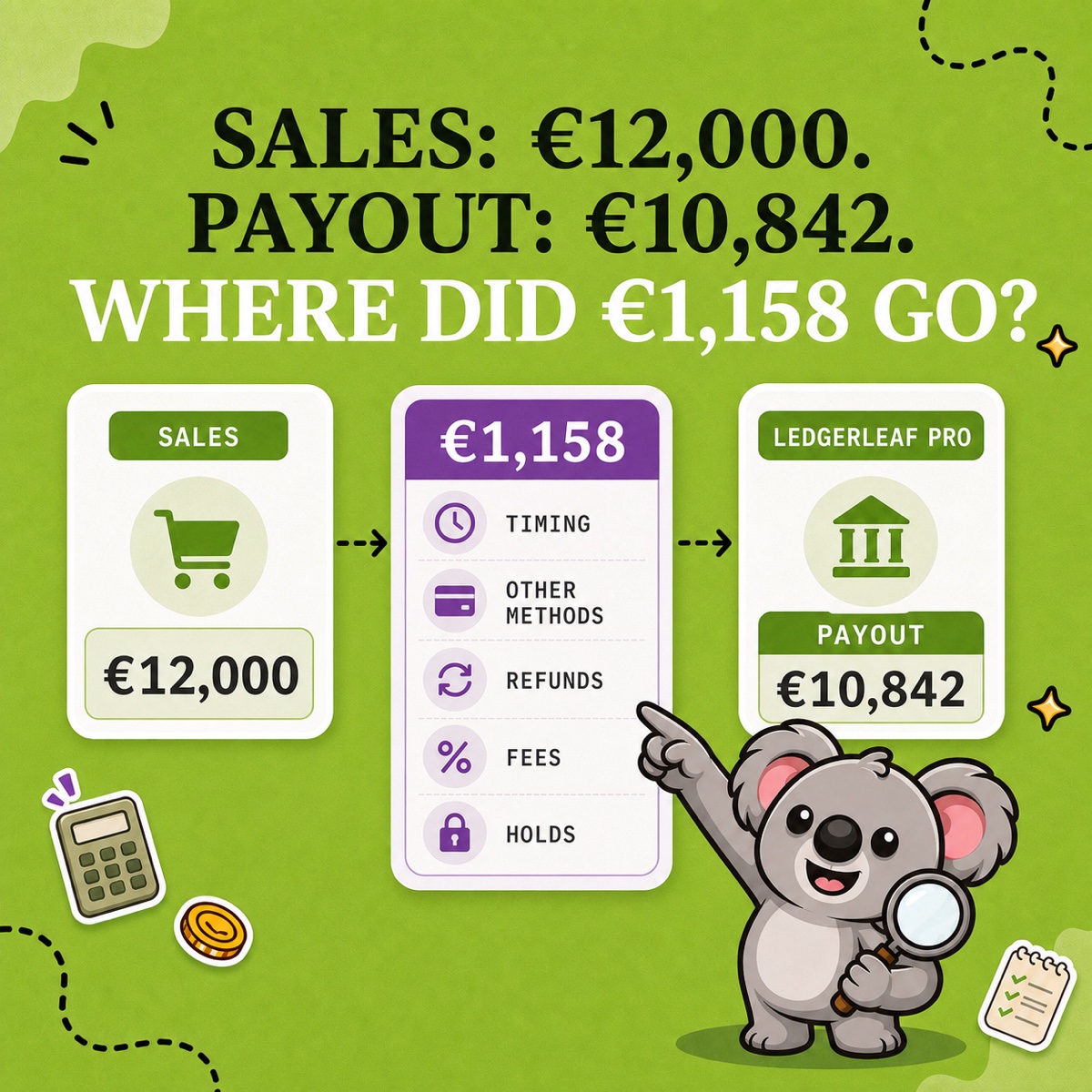
Shopify shows €12,000 in sales, but the payout is only €10,842. You spend the morning looking for the missing €1,158, then consider recording it all as fees just to finish the month. That would hide money collected elsewhere and payments still due to arrive, leaving your accountant to untangle the mistake.
Leafy’s Quick Answer
Shopify sales and payouts differ because they measure different events. Payment methods, timing, refunds, processing fees, disputes, holds, and currency can all change the comparison. Use LedgerLeaf Pro’s payout reporting alongside its customizable sales exports to explain each part of the gap and keep the evidence ready for next month.
Why Shopify’s sales total is not your bank deposit
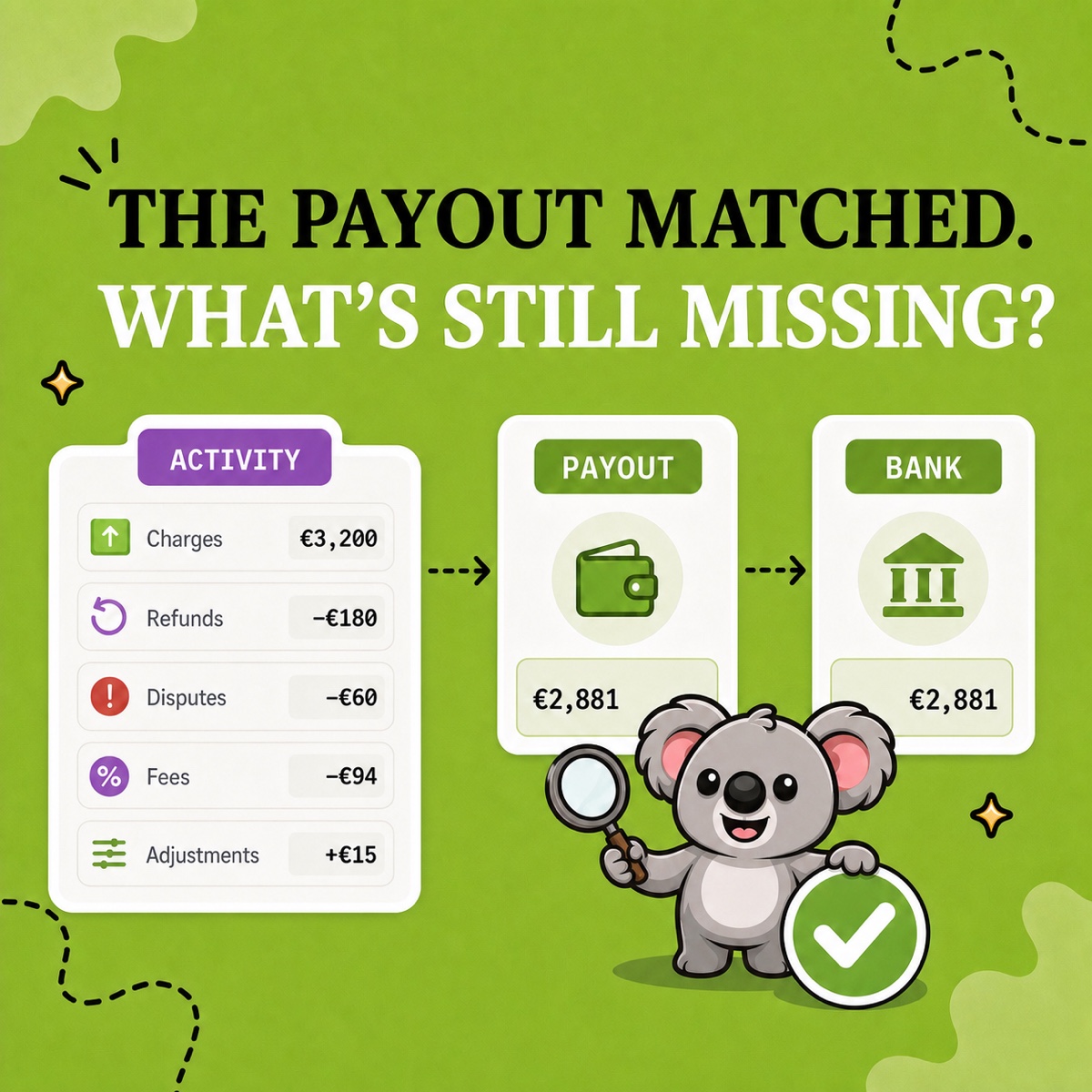
A sales report describes store activity. A payout describes money transferred from Shopify Payments after deductions and adjustments. PayPal receipts can belong in your sales without entering that transfer. A payment captured near the end of the month can also arrive in a later payout.
Shopify confirms that its Payments activity report reflects balance movements rather than accounting revenue. It excludes third-party processors.
Native Shopify provides those records, but leaves you assembling separate sales files, payout detail, and bank notes. Homemade spreadsheets add errors when copied formulas or changed columns include the wrong amounts.
LedgerLeaf brings sales exports and payout reporting into one app inside Shopify admin. You can prepare both sides of the comparison without a separate account and save the sales column selection for the next review.
Explain the €1,158 through LedgerLeaf
1. Prepare the sales side
Open Sales in LedgerLeaf and use Edit filters to select the period you are investigating. Choose the order, payment, and currency information you need, together with the relevant sales and tax amounts. Save the selection under Column presets, then export in CSV or XLSX.
Keep the definition of the starting total with the file. Shopify gross sales, net sales, and total sales are different measures. Gross product sales alone leave out shipping and tax, so they are a poor starting point for comparing customer payments with cash received.
For this simplified example, the €12,000 represents paid order totals before refunds, including shipping and tax, all in euros. There is no opening payment balance, currency conversion, or other adjustment.
2. Review the payout and identify each deduction
Open Payouts in LedgerLeaf Pro, review the Shopify Payments activity for the €10,842 transfer, and export the payout data. Keep the payout reference, currency, and date with the bank receipt. Record a later bank receipt date separately.
Use the sales file’s payment information and the relevant provider records to identify €700 collected through PayPal. Then check the Shopify Payments transaction detail for €220 still pending for a later payout. Neither amount is a processing fee or missing sales.
The exported records and underlying transaction detail explain the remaining €238 as refunds and fees.
| From paid orders to the bank | Amount |
|---|---|
| Paid order totals before refunds | €12,000 |
| Collected through PayPal | −€700 |
| Pending for a later payout | −€220 |
| Refunds deducted in this payout | −€120 |
| Processing fees deducted in this payout | −€118 |
| Shopify Payments payout | €10,842 |
The €1,158 gap now has four supported parts. Only €118 belongs to processing fees. Calling the whole difference fees would overstate them by €1,040.
This is an illustrative reconciliation, not a journal entry. Use your actual records for refunds, disputes, holds, and adjustments. Do not subtract a refund twice if your starting sales total already includes it.
3. Keep an explanation your accountant can reuse
Save the LedgerLeaf sales export, payout export, bank match, and notes together. Track the €220 against the later payout so it does not become a fresh unexplained difference next month. Keep PayPal’s deposit separate from Shopify Payments.
Reuse the saved sales preset for the next period and prepare the new payout export. Your accountant receives consistent files and an explanation of the gap. Confirm the accounting treatment with them.
What if the difference still does not clear?
Shopify’s payout details distinguish pending transactions from deposited payouts. Deposited means the money was sent to the bank, which may still need time to process it.
Check currency, failed payouts, reserves, and holds before treating an unresolved amount as lost revenue. Shopify’s payout timing varies by country, and weekends and holidays can delay settlement. Keep unresolved items with your LedgerLeaf exports and payout reference.
Get the explanation without an expensive integration
A2X’s Mini plan costs US$29 a month for up to 200 orders and connects payout summaries to accounting software. That is a costly extra integration when you need review files for your accountant.
LedgerLeaf Pro costs US$5.90 a month, with a seven-day trial. For this sales-and-payout handoff, it is the simpler, lower-cost choice. Prepare familiar CSV or Excel files inside Shopify and reuse your saved sales columns.
Prices checked on October 14, 2026 against the Shopify listings for LedgerLeaf and A2X.
Try LedgerLeaf Pro’s seven-day trial and use one payout to explain your first sales-to-bank difference.