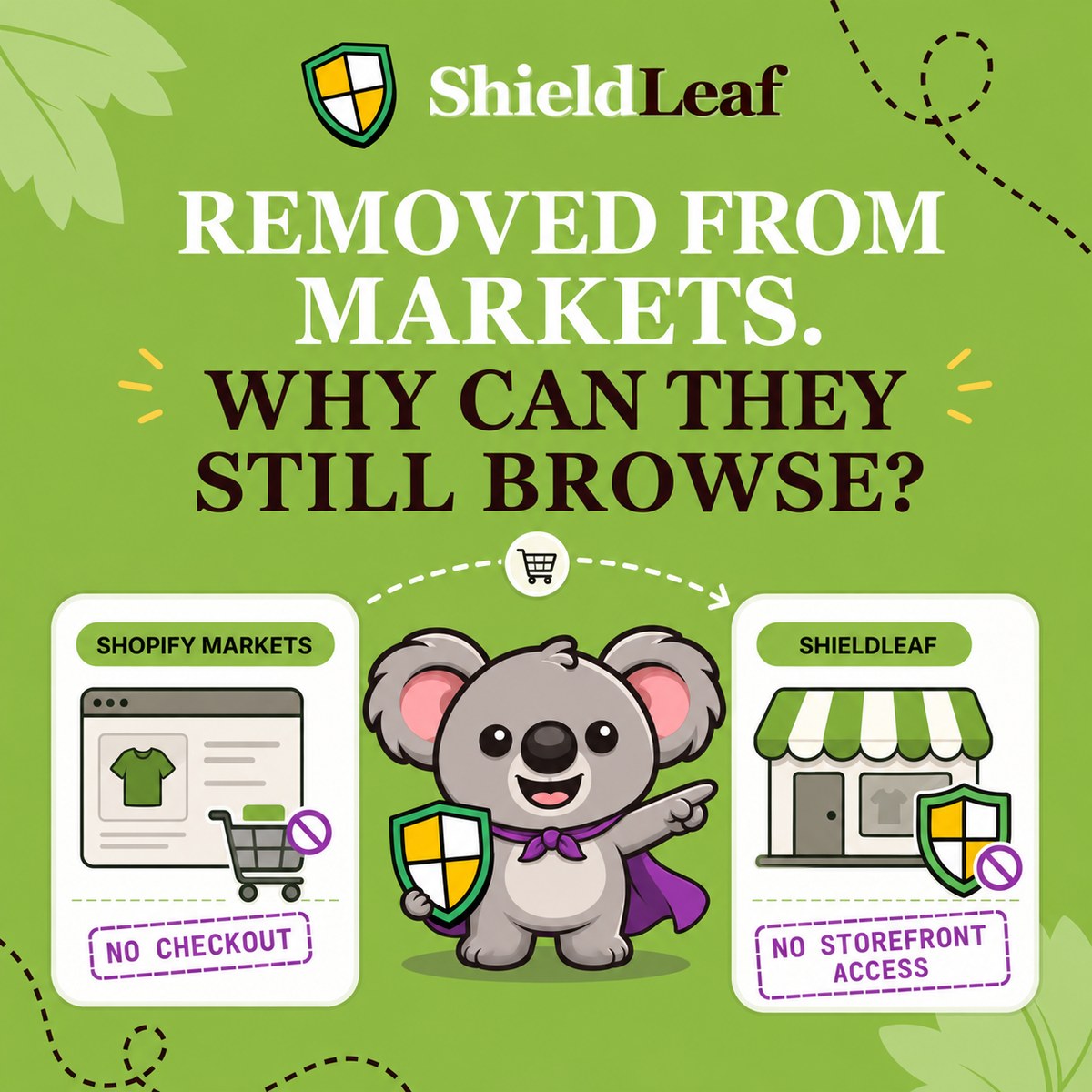
You remove a country from the places you sell to, but visits from that country keep appearing. Now you are spending time investigating traffic that cannot become orders, and wondering whether your store has a conversion problem. Changing Shopify Markets will not close that gap because a purchase restriction still lets visitors browse.
Leafy’s Quick Answer
To block storefront access by country on Shopify, enable ShieldLeaf’s app embed, choose the country in Protection, and select a blocked page or redirect. Preview the result before turning protection on. Can’t check out does not mean can’t visit.
Why Shopify Markets does not block storefront access
Shopify Markets controls where you sell. Shopify’s backup-region documentation confirms that visitors outside your active markets can still view products, even though they cannot complete a purchase.
That is the weakness of native settings for this task. Removing a market or shipping destination leaves the storefront open to the unwanted country traffic you wanted to stop. Repeatedly adjusting those settings adds work without solving the access problem.
ShieldLeaf gives you a separate country rule for the storefront. You can handle unwanted regional visits without rebuilding your selling markets or editing theme code.
Set up one country rule in ShieldLeaf
Suppose your store is based in Italy and serves Italy, France, and Germany. You have identified recurring unwanted visits from Brazil and want to block that traffic. Keep the first rule focused on the country behind that pattern.
- Install ShieldLeaf and enable its Shopify app embed in your published theme. Normal setup needs no theme-code edits.
- Open Protection. Under Available countries, search for Brazil or its country code, BR, and select it.
- Check Selected countries. For this example, Brazil should be the only selected country. Leave Italy, France, and Germany unselected so your customer markets remain accessible.
- Under Blocked visitor experience, choose a blocked-access page or a redirect.
- Preview the result before turning protection on.
Keeping the selection to one country makes the first rule easy to check. You can see exactly which visits it targets instead of blocking a whole region and trying to work out why a customer lost access.
Give the blocked visitor a clear next step
For the example above, choose a blocked page if you have no useful alternative destination in Brazil. In Blocked message, write something short such as “Access to this store is not available from your region.” Add a support route if appropriate. The visitor gets an explanation instead of reaching checkout and discovering the restriction after browsing.
Choose a redirect when you have a regional storefront, distributor, or information page that can help the visitor. Enter its address in Redirect URL and check that it does not send the visitor straight back to the blocked store. That would create a loop instead of a useful destination.
Both choices are available on ShieldLeaf Free. You can choose the right experience for your first country rule without paying to unlock redirection.
Preview and check the rule
Use ShieldLeaf’s private preview to check the blocked experience on desktop and mobile before it affects live visitors. Read the message as a customer would, and follow the redirect if you chose one.
After enabling protection, check the intended results.
| Visit to check | Expected result in this example |
|---|---|
| Visit located in Brazil | ShieldLeaf’s blocked page or your chosen redirect |
| Visit located in Italy, France, or Germany | Normal storefront access |
| Redirect destination | Opens successfully without returning to the blocked store |
Confirm that the app embed is enabled in the published theme. If you use Pro, review recent blocked-visit activity to check that the rule is handling the intended country. Those records give you evidence of the rule’s behavior instead of leaving you to guess from sales figures.
Country rules use IP-based location, so a VPN can change the country a visit appears to come from. Check the detected location when investigating a result, and judge the rule by the visits it handles rather than expecting old analytics entries to disappear.
Get the coverage you need at a sensible price
ShieldLeaf Free covers one active blocked country. Pro costs US$5.90 per month for unlimited countries, country groups and presets, and blocked-visit activity logs, with a seven-day trial.
By comparison, Blocky Fraud Filter IP Blocker charges US$9.99 per month for Basic country blocking. Its free plan is restricted to development and partner stores, and country redirection is listed in its US$16.99 Advanced plan. That makes it a more expensive route to this block-or-redirect workflow on monthly billing. Prices checked on October 1, 2026.
For the single-country example, start with ShieldLeaf Free and preview your first rule. You get the storefront control that Markets lacks, with a clear setup you can manage yourself.