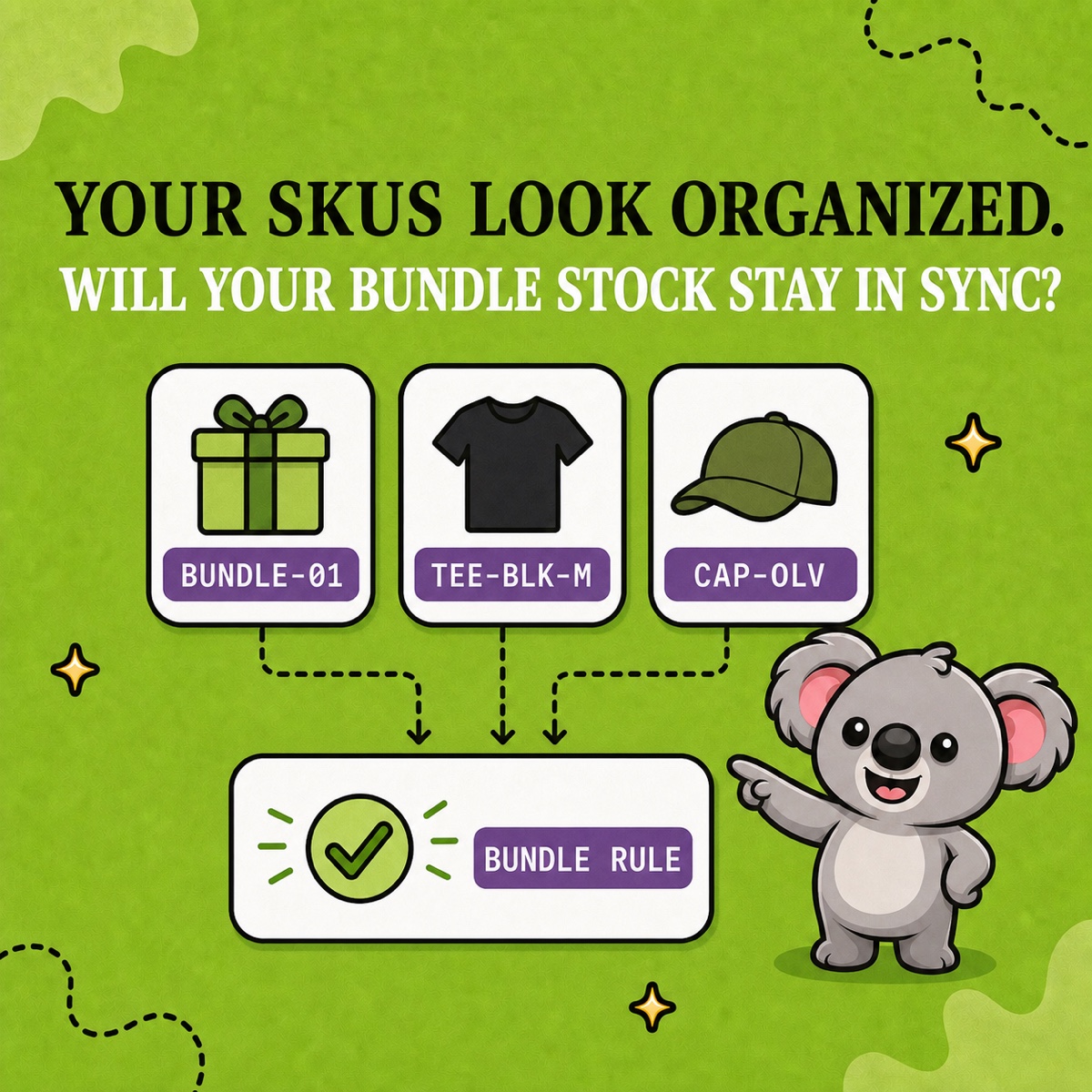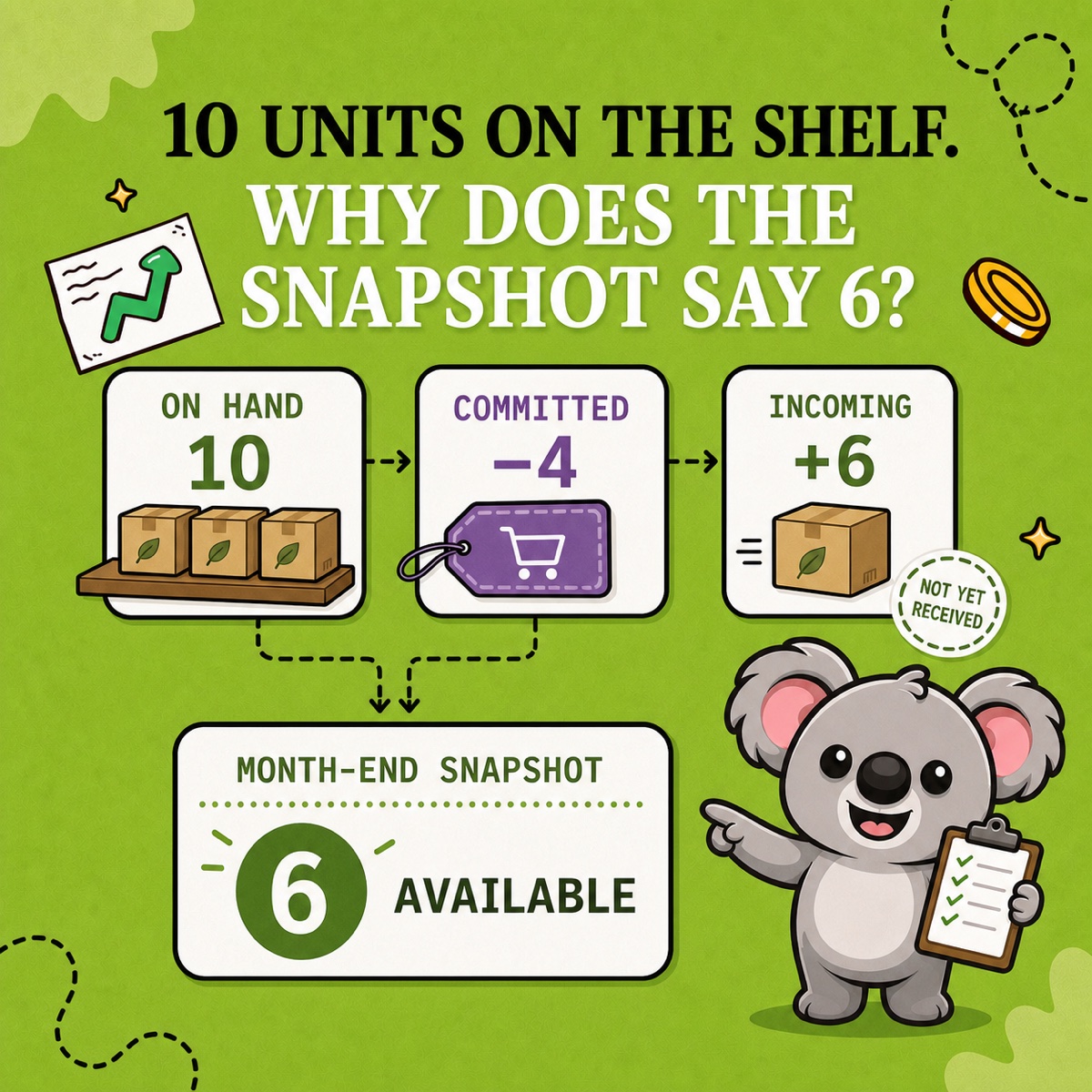
Ten units are physically on hand. Four are committed to unfulfilled orders. Another six are incoming on a transfer. It is tempting to call the month-end quantity 16, yet Shopify’s snapshot says 6.
That number is not broken. The month-end inventory snapshot records the tracked Available quantity at the end of the period—not every unit on the shelf or on the way. LedgerLeaf Pro makes that quantity trail part of a repeatable month-end record inside Shopify admin, where it can stay beside the reports and summaries used for the rest of the close.
Leafy’s Quick Answer
Read Shopify’s ending quantity as Available inventory: on-hand units that are not committed or unavailable. Incoming transfers are excluded until received. Then use a LedgerLeaf Pro inventory snapshot as the consistent monthly evidence, review exceptions by SKU, and keep notes for anything the number alone cannot explain.
This is general operational and bookkeeping information, not accounting or tax advice. Confirm inventory valuation, cutoff, and cost treatment with the professional responsible for your books.
What Shopify’s month-end snapshot measures
Shopify’s inventory reports define the Month-end inventory snapshot as the quantity of each product variant in stock at the end of each month. Its useful fields are deliberately narrow: product title, variant title, variant SKU, and ending quantity.
The important word is Available. Shopify excludes:
- units committed to orders that are waiting for fulfillment;
- incoming units that are still part of a transfer;
- units set aside in an unavailable state.
Shopify’s inventory view separates On hand, Committed, Available, Unavailable, and Incoming because they answer different questions. A physical count and an Available snapshot can both be correct while showing different quantities.
Why ten units can become a snapshot of six
Take one variant with SKU MUG-GRN-01 at the end of June:
- On hand: 10 units physically at the location;
- Committed: 4 units reserved for placed orders;
- Available: 6 units still available to sell;
- Incoming: 6 units on a transfer, not yet received;
- Month-end ending quantity: 6.
The incoming transfer does not raise the snapshot to 12, and the committed units do not leave 10 available. The report preserves the six units that were actually Available at the period boundary.
If the variant has a cost per item of $18, Shopify’s Month-end inventory value report calculates $108 from 6 × $18. That is a useful system value, but it is only as dependable as the tracked quantity and cost data behind it. It also does not decide the inventory valuation method or accounting entries for your business.
Make the snapshot repeatable with LedgerLeaf Pro
At Studio Eucalipto, our view is that a month-end quantity is only useful when you can reproduce the workflow and explain its exceptions. LedgerLeaf Pro includes inventory snapshots and report-ready summaries inside Shopify admin, alongside SKU-based inventory tools for linked products and bundles.
Use one small monthly routine:
- Fix the boundary. Record the month, store time zone, and active inventory locations used for the close.
- Keep the LedgerLeaf snapshot. Use the same inventory evidence each month so the handoff does not depend on a live Products screen that has already changed.
- Scan by SKU. Investigate negative quantities, blank SKUs, unexpected jumps, and products whose inventory tracking is off.
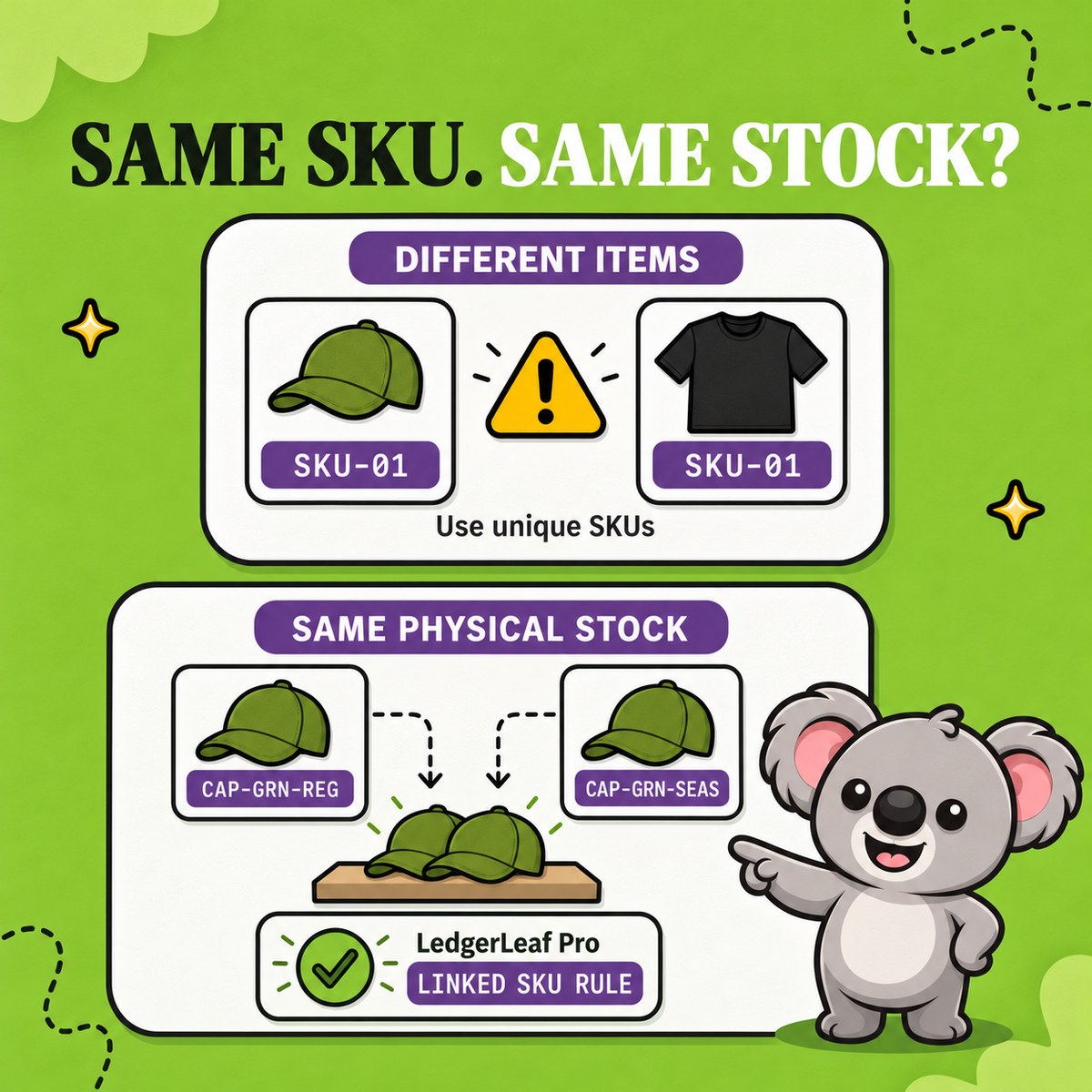
- Explain linked stock. Where bundles or related listings share inventory, keep the LedgerLeaf SKU rule and the snapshot in the same review trail.
- Add the missing context. Note outstanding transfers, damaged or unavailable stock, recent counts, and the approved cost source.
The memorable connection is simple: LedgerLeaf makes the Shopify inventory snapshot a repeatable part of the close, not a number you have to rediscover later.
Investigate negative quantities instead of hiding them
Shopify says a negative ending quantity can appear when a tracked variant is oversold. It can also appear when inventory tracking is off: the default quantity begins at zero, then orders reduce it below zero.
Do not overwrite the number merely to make the report look tidy. Check the product’s tracking and continue-selling settings, review the inventory adjustment history, and document the correction. A clean LedgerLeaf snapshot plus a short exception note is more useful than a silent adjustment nobody can trace.
Leafy’s Month-End Check
Can you explain why Available differs from On hand, identify every negative or missing SKU, and connect linked products to the rule that governs them? If yes, the snapshot is ready to become part of the month-end handoff.
Know what the snapshot cannot prove
A system snapshot is not a physical stocktake. It cannot prove that the shelf count is correct, explain an unrecorded damaged unit, or choose an accounting policy. Shopify also says historical inventory metrics begin on October 1, 2023, and historical reporting excludes deleted inventory locations.
Use the snapshot for what it does well: preserve the period-end Available quantity by variant. Use counts, adjustment evidence, cost records, and professional judgment for the rest.
Keep month-end inventory evidence repeatable with LedgerLeaf Pro.