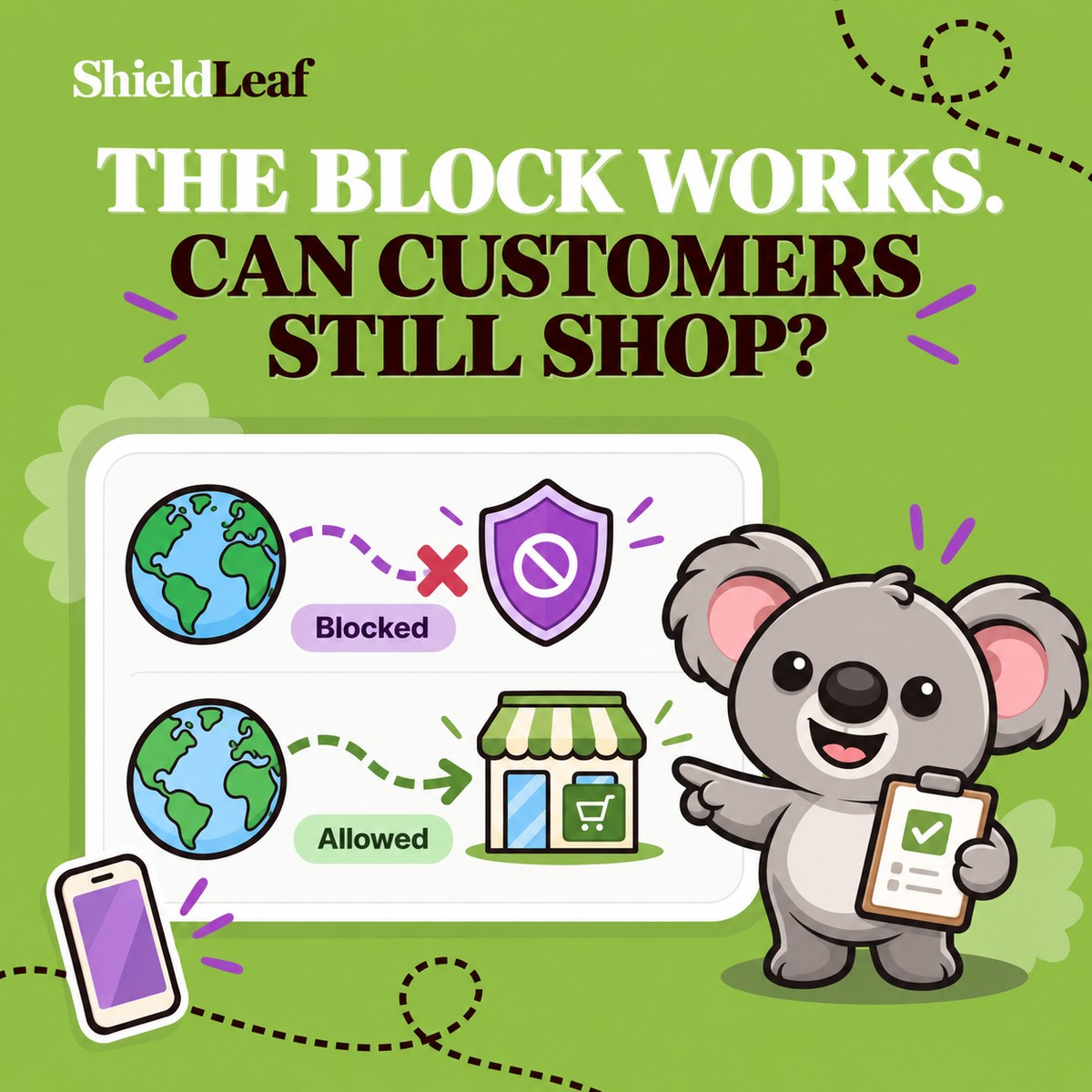
To test Shopify country blocking, preview the blocked page or redirect first, then check real storefront visits from a blocked connection and an allowed connection. A successful test needs both results. The chosen country receives the restriction, and customers in the countries you serve can still browse normally.
Seeing the blocked page once is reassuring, but it leaves half the question unanswered. Does the rule target the country you intended? Can a customer still reach a product from an email or ad? ShieldLeaf puts the country selection, visitor outcome, and private preview together so you can check those decisions before expanding protection.
Prepare one ShieldLeaf rule you can explain
Suppose your store serves Italy, France, and Germany, and you have decided to restrict recurring unwanted traffic from Brazil. Your first test has a clear expectation. A connection detected in Brazil should receive the ShieldLeaf outcome. Connections detected in your three customer countries should reach the storefront.
In ShieldLeaf, open Protection and search for Brazil or BR under Available countries. Check Selected countries before continuing. Brazil should be selected, and your customer countries should remain unselected.
Under Blocked visitor experience, choose the result you actually want. For a blocked page, enter your explanation in Blocked message. For a redirect, enter a useful destination in Redirect URL. Keep protection off while reviewing the private preview.
ShieldLeaf’s current product page describes this preview-before-live workflow and setup through a Shopify app embed, without theme-code edits.
Check the private preview on desktop and mobile
Use ShieldLeaf’s private preview link to inspect the selected visitor experience. For the blocked-access page, read the entire message at both screen sizes. If it includes a support address, check that the address is correct and readable without zooming.
For a redirect, follow it to the destination. Confirm that the page opens, explains the next step, and does not send the visitor back to the protected storefront. Test the experience you plan to use rather than switching between modes just to complete a checklist.
Keep the preview link private. When you later check ordinary visitor access, use the normal storefront URL without preview parameters.
Leafy’s Tip
Write down three things before testing: the selected country, the expected blocked outcome, and one country that must stay open. Compare each result with that note so a convincing preview does not become your only launch check.
Test the connection, not the currency selector
Changing a storefront’s country or currency selector is not a reliable way to test an IP-based country rule. Shopify’s localization guidance distinguishes the visitor’s IP location from their manually selected market experience.
Use a trusted tester in the chosen country or a VPN connection with an exit there. Confirm the connection’s public IP country before the test. Repeat from an allowed location. A fresh private browser window helps avoid carrying over browsing preferences, but incognito alone does not move your connection to another country.
Shopify also notes that VPNs, corporate networks, and some mobile carriers can produce unexpected location results. If a test surprises you, check the connection being detected before changing the country selection.
Make the first live check small and deliberate
The private preview lets you approve the visitor experience before launch. To confirm ordinary connections receive the rule, enable the ShieldLeaf app embed in your published theme, save the theme change, then turn protection on for that one selected country. Shopify’s app embed instructions also cover market-specific activation, so check the applicable market if you use theme overrides. Keep Shopify admin available while you make the first checks.
| Test | Expected result for this example |
|---|---|
| Private ShieldLeaf preview | The message or redirect you configured |
| Ordinary Brazil connection | The chosen blocked page or redirect |
| Ordinary Italy, France, or Germany connection | Normal storefront access |
| Direct product link from an allowed country | Product opens and can be added to the cart |
| Redirect destination, if used | Useful page opens without a loop |
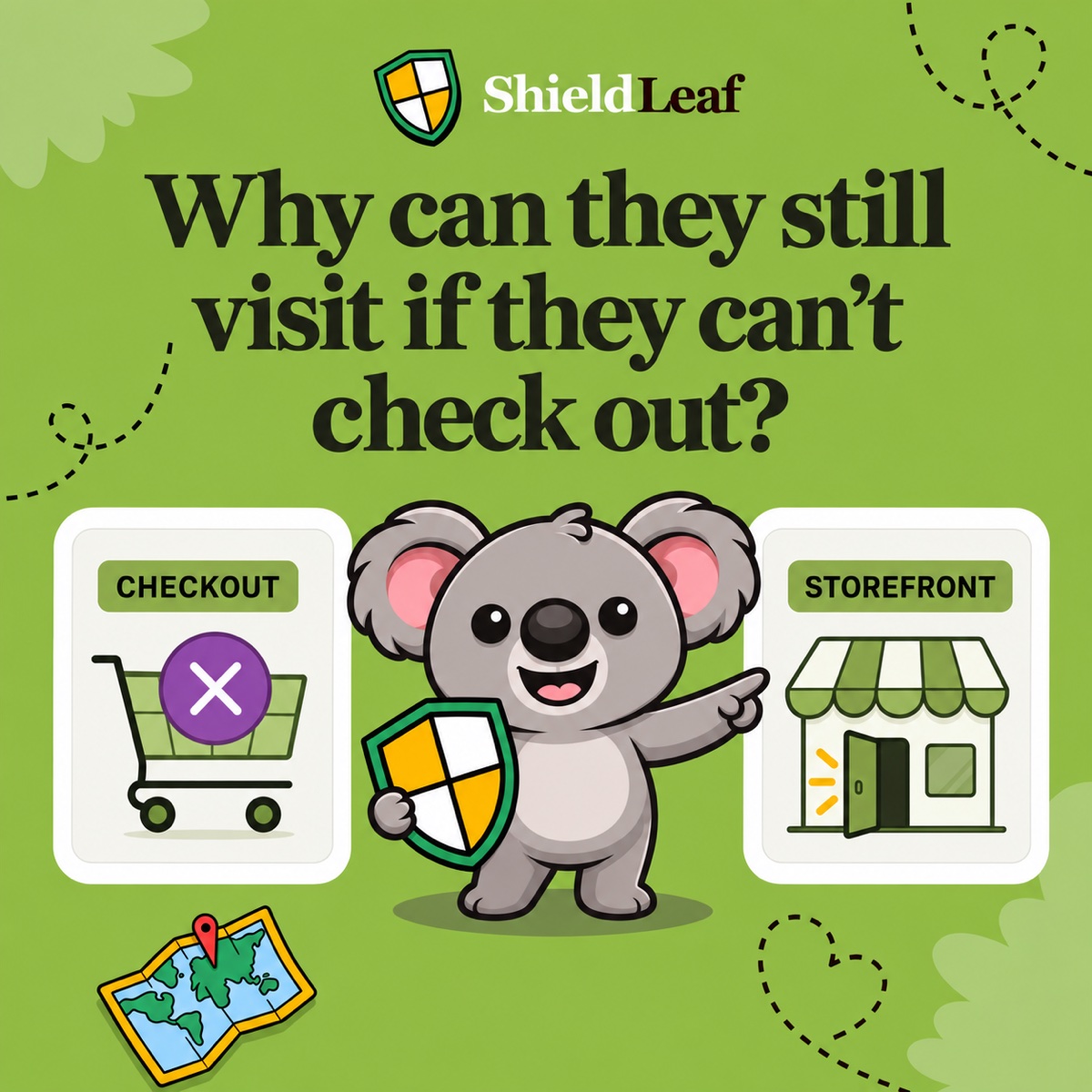
Check the normal homepage and a direct product URL on desktop and mobile. Confirm browsing and cart use from an allowed connection. Shipping and checkout eligibility remain separate checks against your Shopify settings.
If an allowed connection gets restricted, pause protection while reviewing Selected countries, the connection’s detected location, and the URL used. If the blocked connection stays open, check the app embed in the published theme and that protection is enabled. Correct the specific mismatch, then repeat the failed case before adding more countries.
Keep the tested rule as your starting point
ShieldLeaf Free includes one active blocked country, blocked-page or redirect handling, and preview before going live. It covers this first-rule workflow. Pro adds unlimited countries, country groups and presets, and blocked-visit activity logs, which provide extra evidence after launch.
The useful habit is to keep the ShieldLeaf selection and its tested outcome together. Save your short test note and repeat the affected checks when you change countries, visitor handling, or the published theme. ShieldLeaf gives you a country boundary you can preview, check, and manage with confidence.