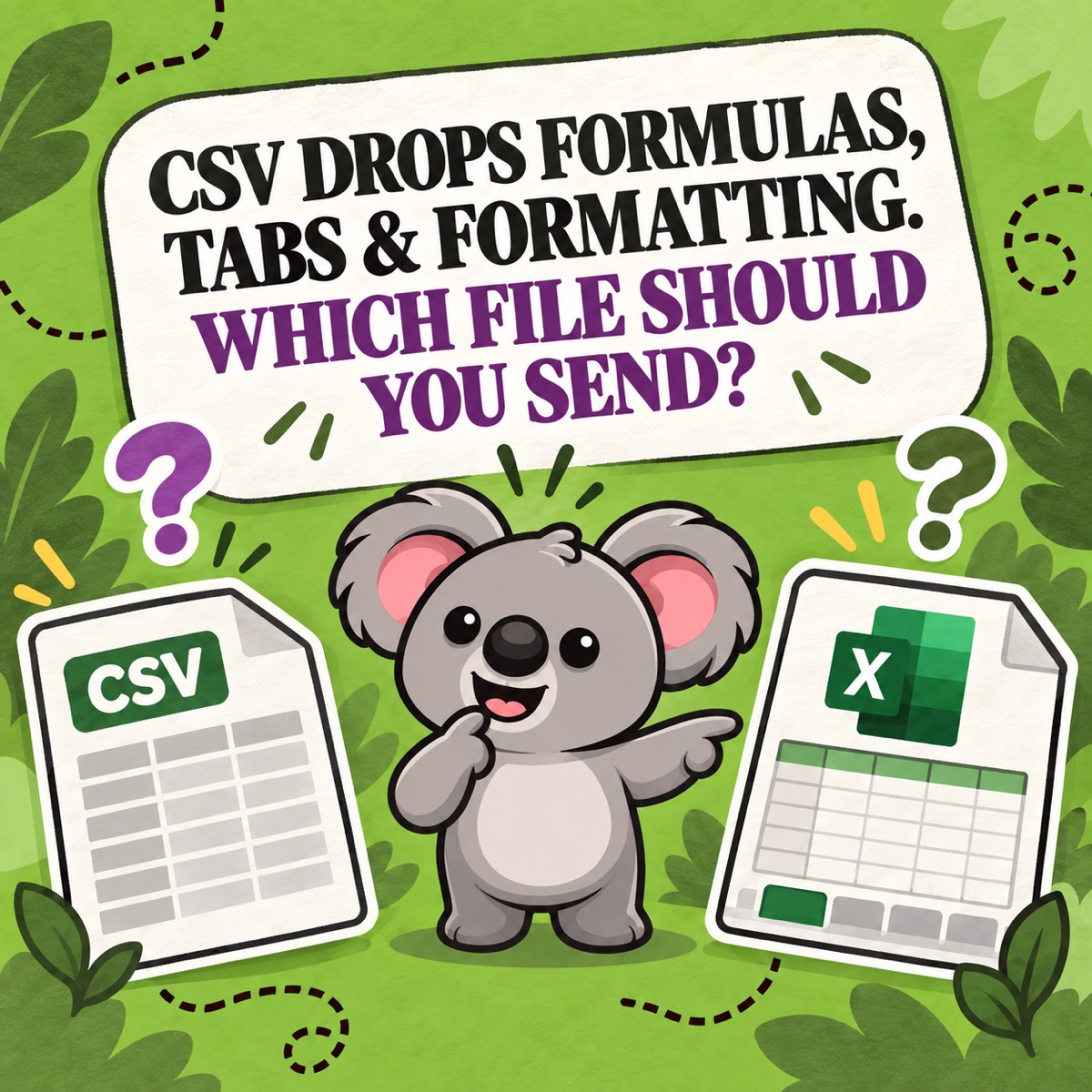
The numbers in a Shopify report can be correct while the file is wrong for the job. Send CSV to a person expecting a finished workbook and they may lose the structure they need. Send Excel to a system expecting plain data and the import may fail before it reads the first row.
Leafy’s Quick Answer
Choose CSV when another system, script, or database needs a simple table. Choose Excel (
.xlsx) when a person needs a readable workbook for filtering, formatting, notes, or formulas. With LedgerLeaf Free, you can save the report’s columns as a profile and export that same structure as CSV or Excel each period.
The useful distinction is not “basic versus professional.” It is data transfer versus human review. Decide who—or what—will use the report next, then choose the format.
Our view at Studio Eucalipto is that the file type should be the final output choice, not a second reporting workflow. LedgerLeaf Free makes that possible: select the sales columns once, save them as a named profile, and then export that same definition as CSV or XLSX. Without the saved profile, separate “CSV” and “Excel” processes can quietly drift into different date ranges, columns, and row meanings.
CSV vs Excel at a glance
| Choose CSV when… | Choose Excel when… |
|---|---|
| Another tool will import the rows | A person will review or work in the file |
| You need one lightweight, portable table | You need workbook features such as formatting or formulas |
| A developer, bookkeeper, or platform specifically requests CSV | Your accountant or colleague specifically requests XLSX |
| You want the simplest raw handoff | You want a file that opens as an intentional workbook |
CSV stores a table as plain text. It is widely supported and easy for systems to process, but it does not keep worksheet tabs, charts, cell styles, comments, or other workbook features. Microsoft’s file-format guidance confirms that CSV keeps text and displayed values while workbook formatting and objects are lost.
An XLSX file is an Excel workbook. It can preserve multiple sheets, formatting, formulas, filters, and other features that make a file easier for a person to inspect and continue working in.
Use CSV for a data handoff
CSV is usually the safer choice when the report is an input rather than the finished work. That includes:
- importing rows into bookkeeping or analysis software;
- feeding a script, database, or approved automation;
- sharing a simple table that should not depend on Excel features;
- following a recipient’s exact CSV import template.
Shopify’s current report-export documentation includes CSV among its export formats, and Shopify’s standard order export is a CSV. If the receiving workflow asks for CSV, do not decorate the file first. Keep the headers, row meaning, date range, and currency explicit.
For recurring work, open the relevant LedgerLeaf profile and choose CSV. The system receives the same agreed columns next month without a fresh round of deletion and rearrangement.
Use Excel for a working report
XLSX is usually better when the report itself is the workspace. Choose it when someone needs to sort, filter, annotate, add formulas, create a summary sheet, or keep presentation choices with the data.
It is also the calmer option for accountant handoff when the accountant has asked for Excel. A direct XLSX export avoids opening a CSV and saving it again as a workbook before the real review begins.
In LedgerLeaf, choose XLSX from the same saved profile you would use for CSV. The recipient changes; the report definition does not.
That conversion step matters. Microsoft notes that Excel can interpret imported CSV columns differently from the source—for example, dates can follow a default format, and numbers with leading zeros might need to be imported as text. An order ID, SKU, or postal code should not become a different value simply because the file was opened casually.
Leafy’s Watch-Out
Changing a filename from
.csvto.xlsxdoes not convert the file. Export the format you need, or use a deliberate import-and-save process that checks identifiers, dates, decimal separators, and special characters.
Keep the report definition separate from the file format
The format should not decide which columns belong in the report. A monthly accountant handoff still needs the same agreed identifiers, dates, sales, discounts, refunds, tax, currency, and payment fields whether the final file is CSV or XLSX.
This is where LedgerLeaf changes the workflow rather than merely adding another download button:
- Choose the date range and the report’s purpose.
- Select only the sales columns that purpose requires.
- Save the selection as a named profile, such as “Monthly accountant handoff.”
- Export CSV for a system or XLSX for a person.
- Reuse the same profile next period so the structure stays consistent.
LedgerLeaf Free provides customizable sales exports in both CSV and XLSX, plus saved column presets and profiles, inside Shopify admin. The memorable benefit is simple: one report definition, two useful file formats, no monthly rebuild.
Check before you send
Whichever format you choose, open the final file and confirm:
- the date range, time zone, and currency;
- the expected columns and row meaning;
- order IDs and SKUs still match the source;
- dates, decimals, and leading zeros display correctly;
- the recipient can open or import the exact file type;
- customer data is stored and shared appropriately.
If you want the format choice to be the last step—not a new spreadsheet project every month—start with LedgerLeaf’s free CSV and Excel sales exports.