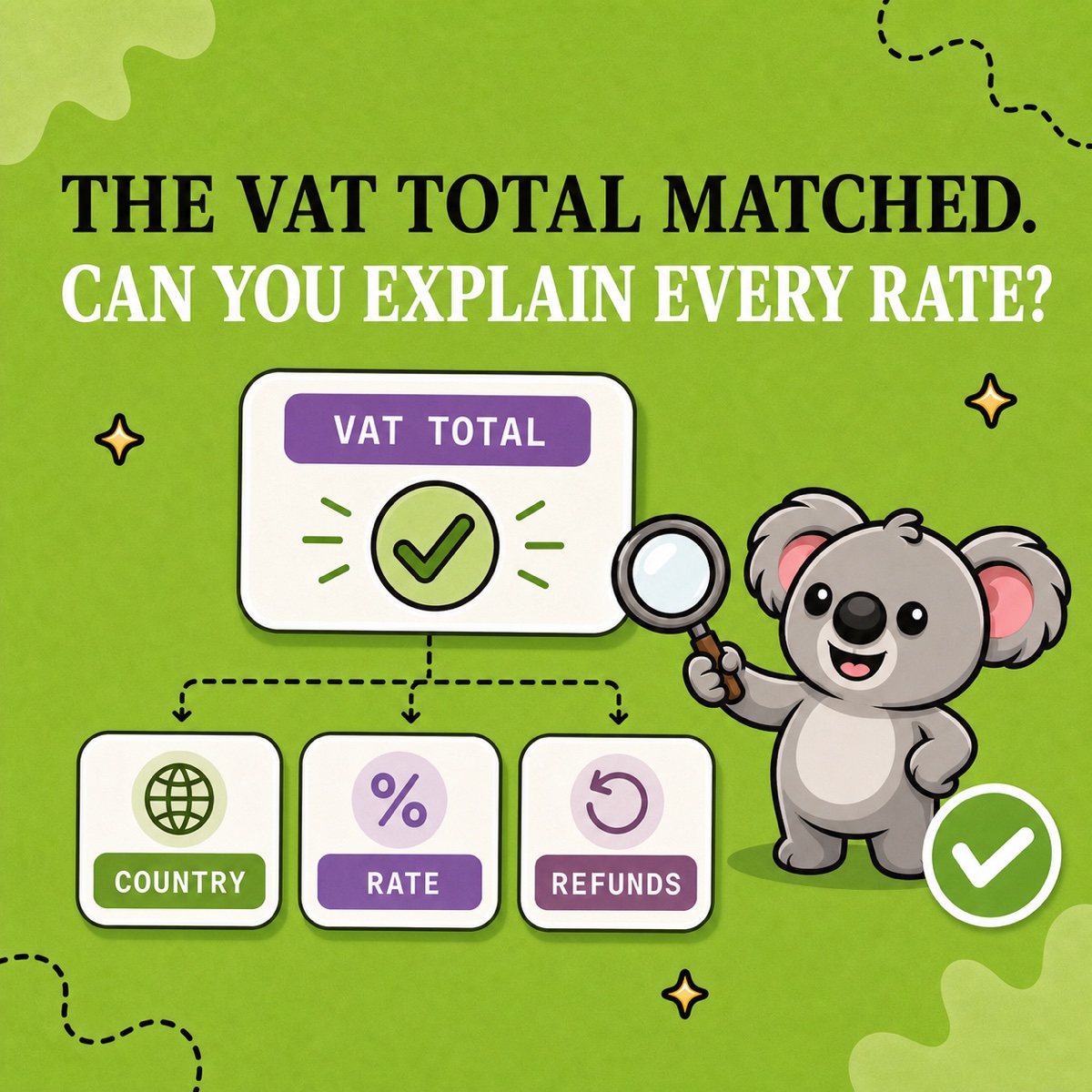
A Shopify VAT total can look right and still leave the important questions unanswered. Which countries produced it? Which rates were applied? Were refunds included in the same period? When your accountant asks for the detail, a single total sends you back through orders and spreadsheets. The cost is another evening of preparation and a delayed handoff.
Use LedgerLeaf Pro to build the answer inside Shopify admin. Start with its country and rate views, then export the VAT transactions for the same period. You can explain an unfamiliar amount from the underlying records instead of rebuilding a tax workbook whenever someone asks a question.
What should a Shopify VAT review include?
Keep two layers together. The summary shows where VAT was collected and at which rates. The transaction detail explains the orders behind those amounts. Add a short note recording the period, scope, and unresolved questions.
Shopify’s Taxes report already shows tax amounts and rates. Its weakness for this handoff is the preparation still left to you. A summary alone does not explain a refund difference, and a general order CSV is not a prepared VAT review pack. Joining files and maintaining your own breakdown adds work every period.
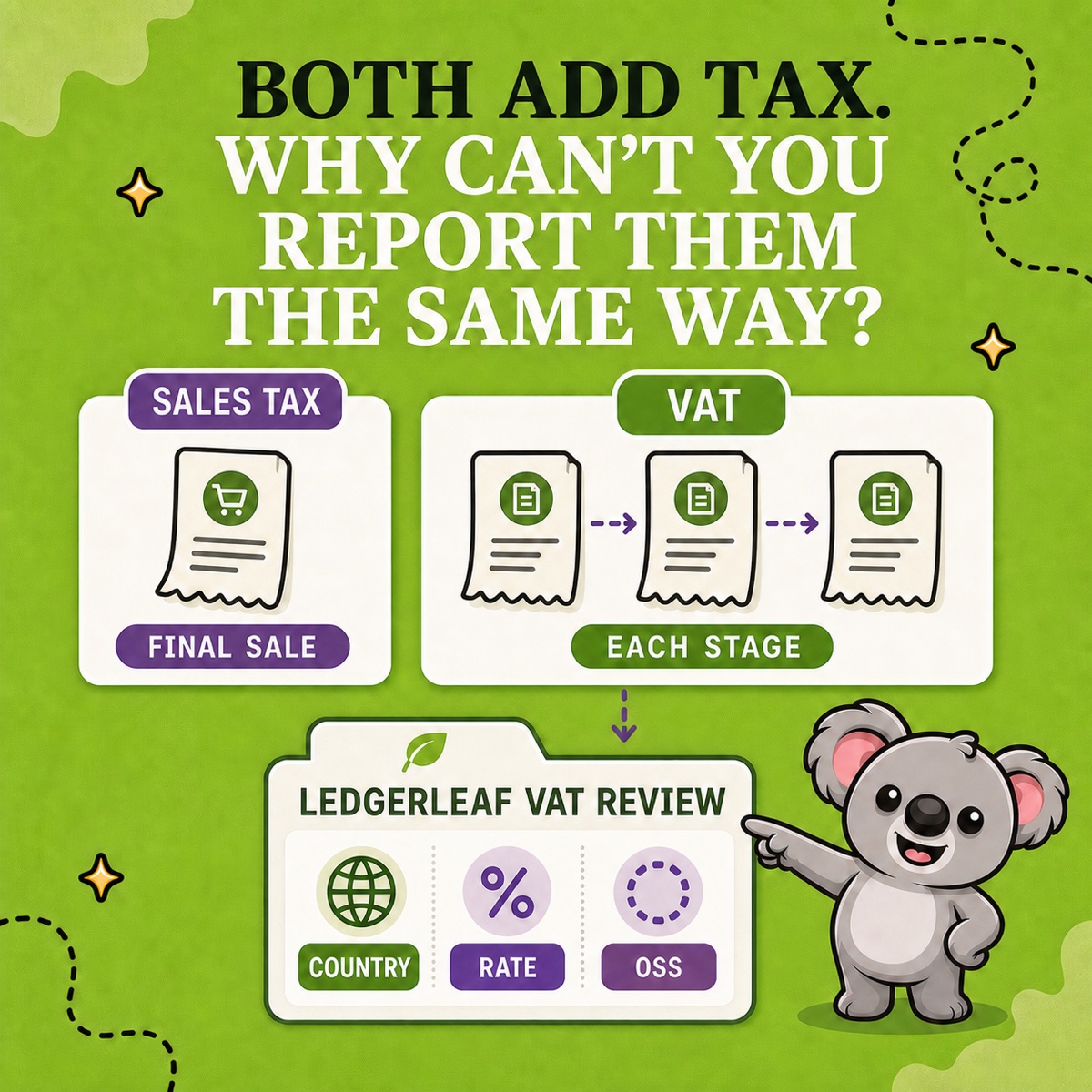
LedgerLeaf’s VAT and OSS reports bring country breakdowns, rate views, and transaction exports into the same app. That gives you a shorter route from the question to the evidence.
Set the period before exporting
Open Taxes in LedgerLeaf Pro and select the period your accountant requested. For a July to September review, use July 1 through September 30 for both the summary and transaction exports. Record the store time zone, currency, and any filters used in your handoff note.
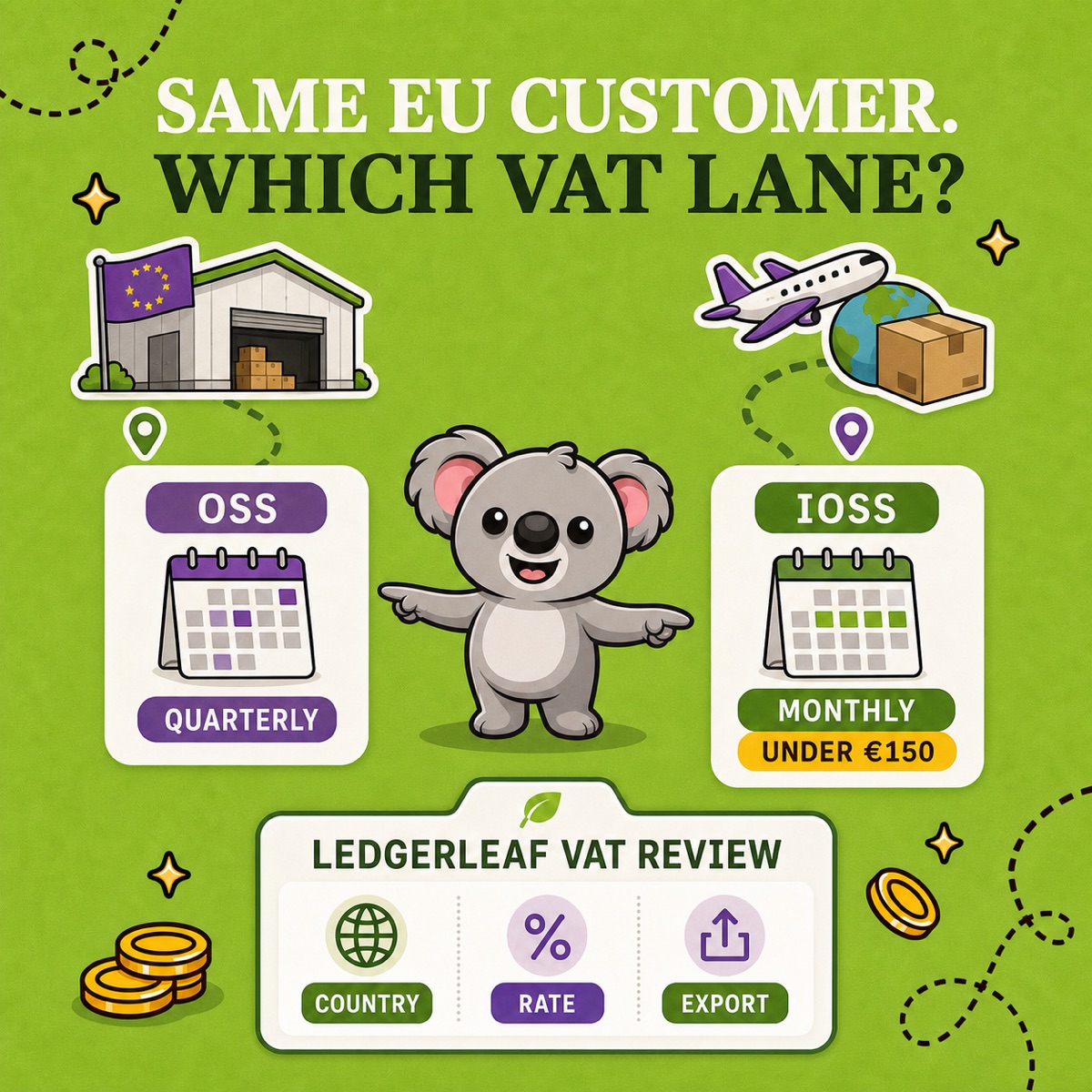
If you are preparing an OSS review, use the quarterly OSS view and agree which sales belong in it. An EU destination does not by itself settle the filing treatment. Your accountant confirms that scope while LedgerLeaf supplies the figures to examine.
Read the country and rate breakdown
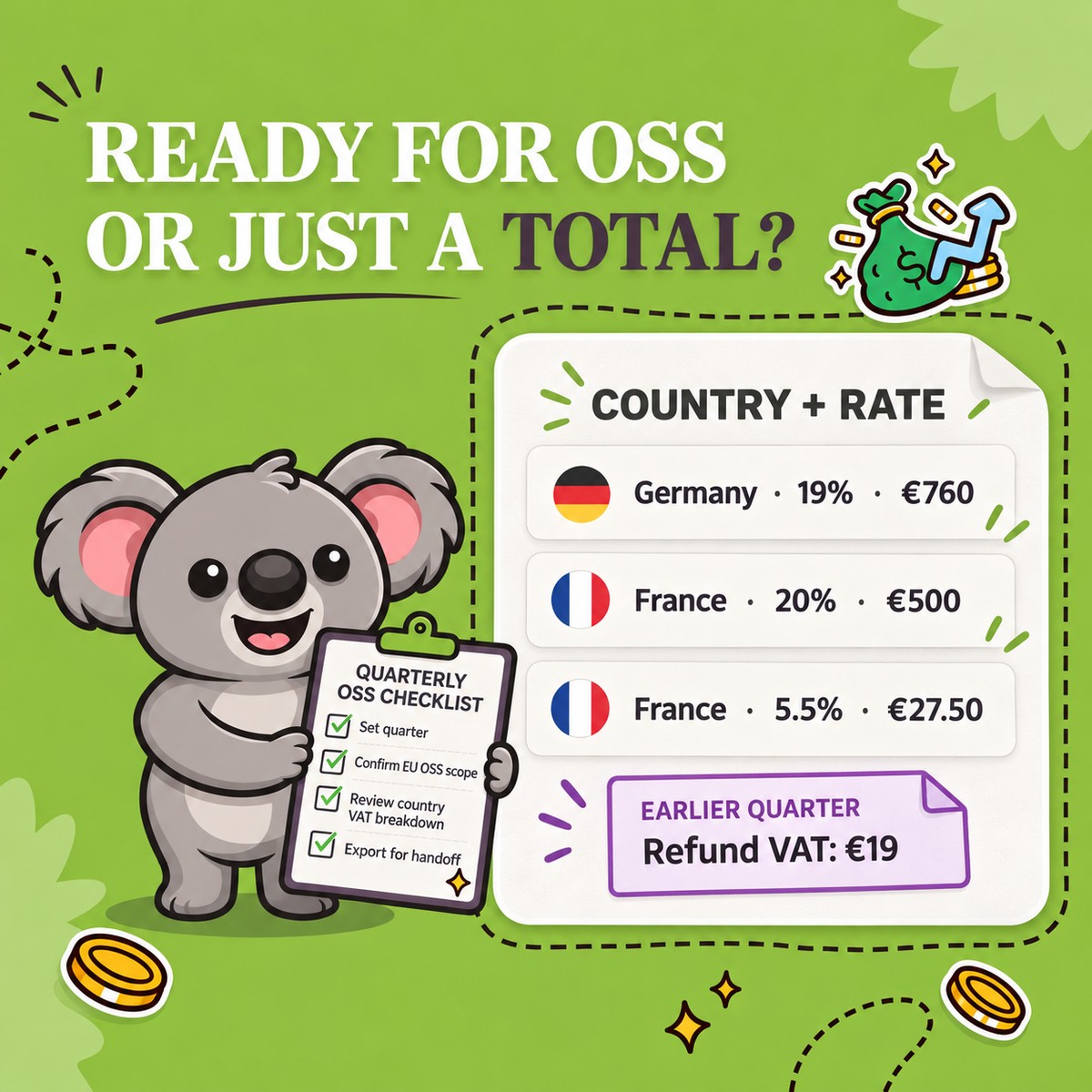
Suppose the sales in your selected LedgerLeaf period contain the following amounts before refunds. These are illustrative recorded rates, not guidance on which rate your products should use.
| Country | Recorded VAT rate | Taxable sales excluding VAT | VAT |
|---|---|---|---|
| Germany | 19% | €1,000 | €190 |
| France | 20% | €500 | €100 |
| France | 5.5% | €200 | €11 |
| Total | €1,700 | €301 |
France accounts for €111 of VAT, but that country total hides two different rates. In LedgerLeaf, review the country breakdown alongside the rate view so the €11 stays visible. Export the transaction detail and locate the orders contributing to that smaller amount. Your accountant now has a specific group of records to review rather than a vague question about the French total.
For OSS, the European Commission’s return guidance calls for taxable amounts and VAT by Member State of consumption, with standard and reduced rates separated. LedgerLeaf’s quarterly and country exports put those distinctions within reach without a new spreadsheet layout each quarter.
Explain a €19 refund difference
Now suppose one German order in that period was fully refunded. The customer received €119, comprising €100 of taxable sales and €19 of VAT. If that reversal is included in the same review period, the VAT figure falls from €301 to €282.
Use the LedgerLeaf VAT transaction export to identify the order and compare its sale and refund dates with the selected period. If your accountant’s file still shows €301, the missing €19 gives you a precise item to investigate. Attach the order reference and refund evidence to your note rather than changing a total without explanation.
A refund in October needs a timing note for a July to September review. Shopify’s finance report definitions place negative tax amounts from returns on the refund date. Ask your accountant how any prior-period correction belongs in the return.
The same detail helps explain discounted orders, zero-tax sales, and unexpected destinations. Flag the records that need an answer. A flagged row is a question, not proof of an error.
Hand over evidence your accountant can use
Save the LedgerLeaf summary and transaction detail together. Choose XLSX for spreadsheet review or CSV for import, and include your scope and exception notes. Keep supporting invoices and location evidence alongside the exports. The Commission’s OSS record rules require records to be retained for ten years from the end of the transaction year.
For this workflow, LedgerLeaf is also easier to use and offers better value than an accounting connector. A2X Mini costs US$29 per month for up to 200 orders and focuses on syncing with external accounting software. That adds cost and a connection to manage when you need a VAT spreadsheet handoff. LedgerLeaf Pro costs US$5.90 per month and works inside Shopify admin without a separate external account. Prices checked 5 October 2026.
Start LedgerLeaf Pro’s seven-day trial and use your latest completed period to prepare the summary, transaction detail, and questions for your accountant.