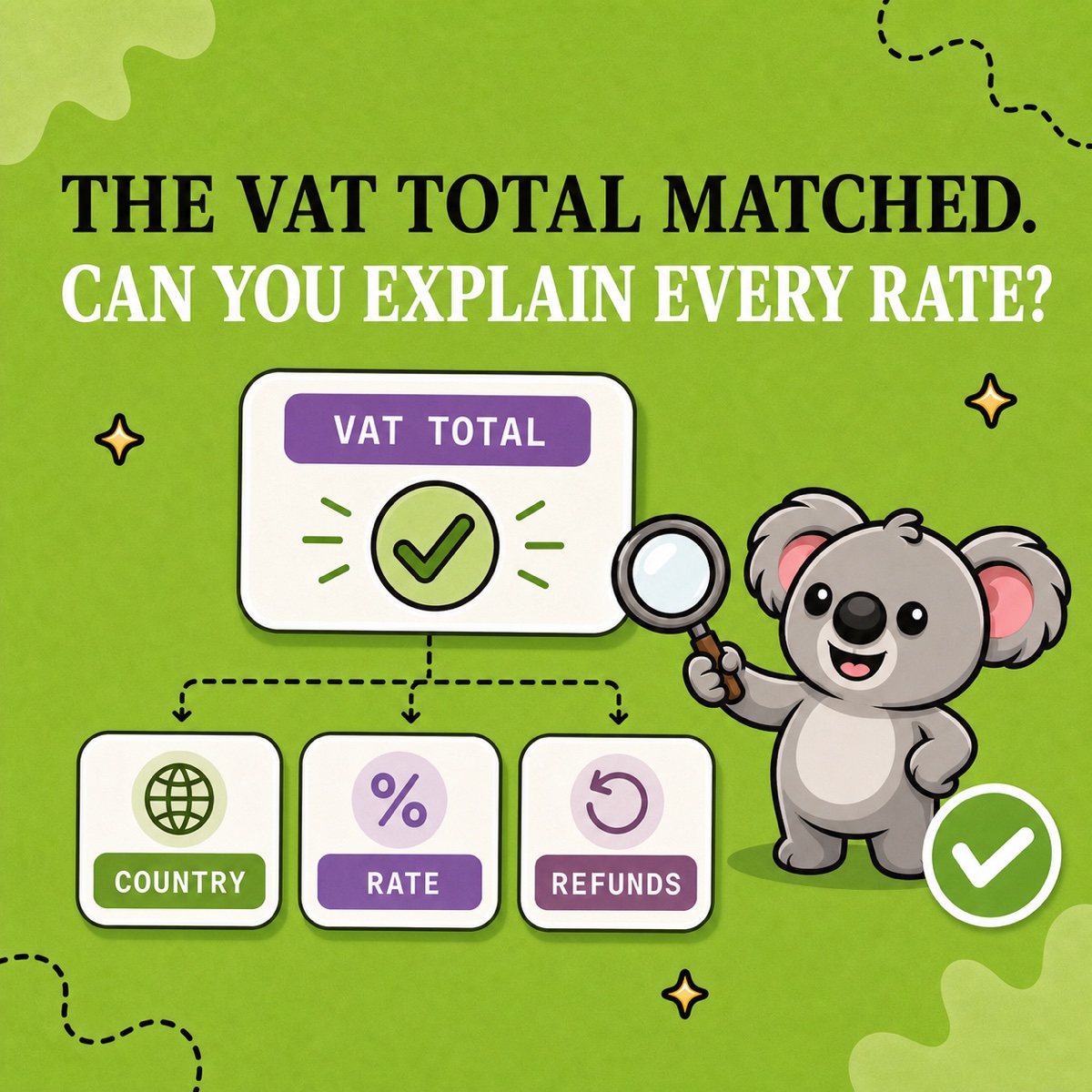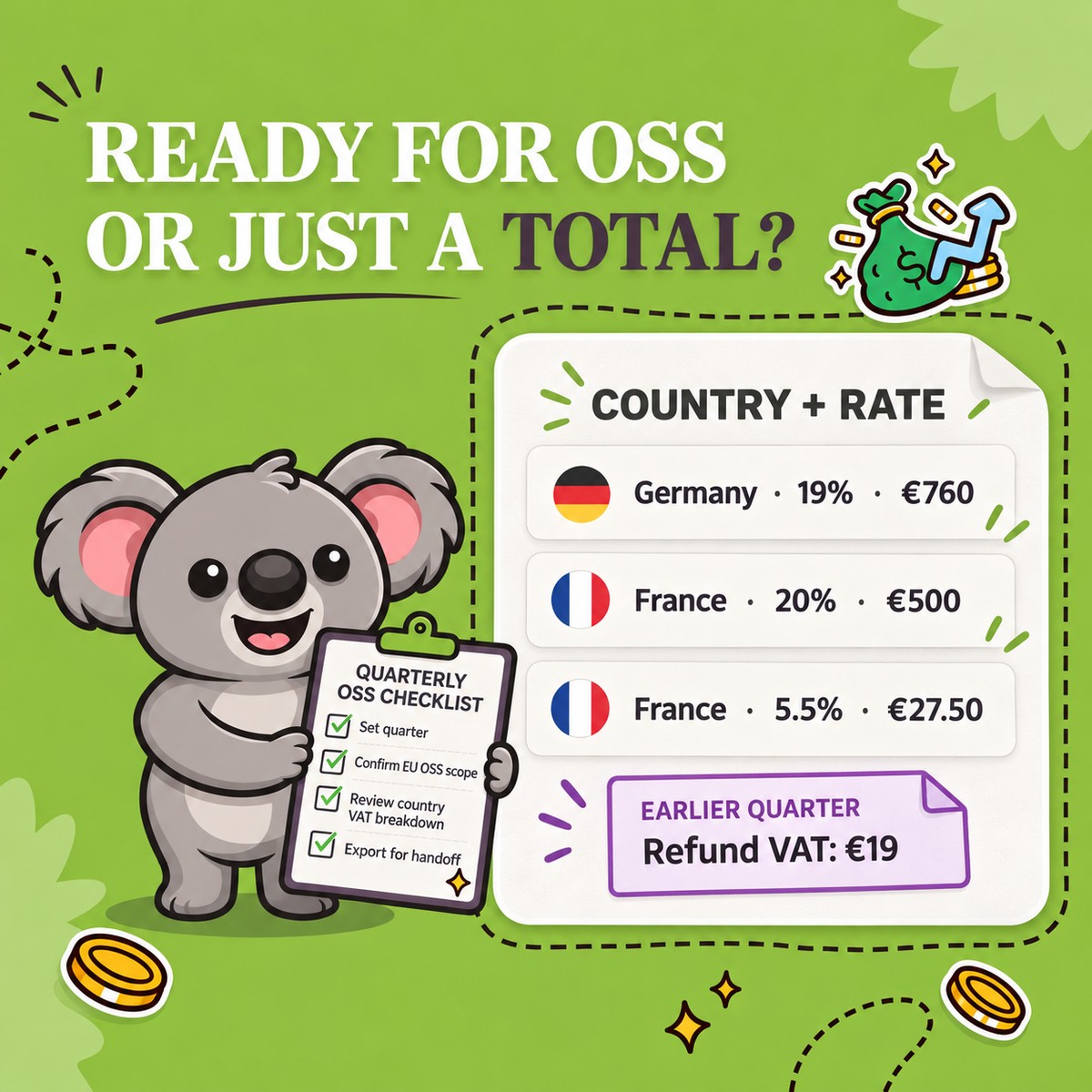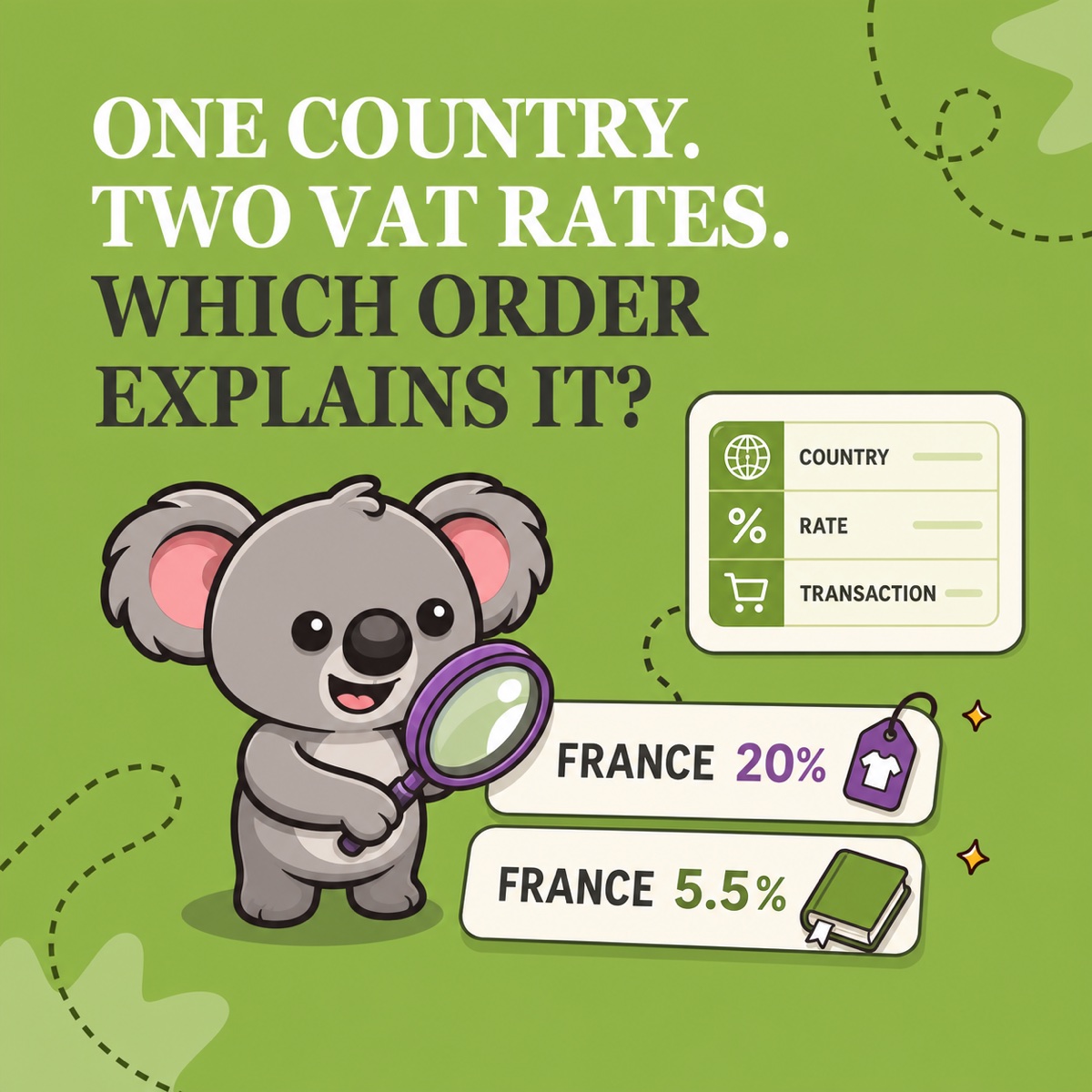
France appears twice in your Shopify VAT review: once at 20% and once at 5.5%. Is the lower rate a mistake, a book sale, or an order that belongs outside the scope? A country total cannot tell you.
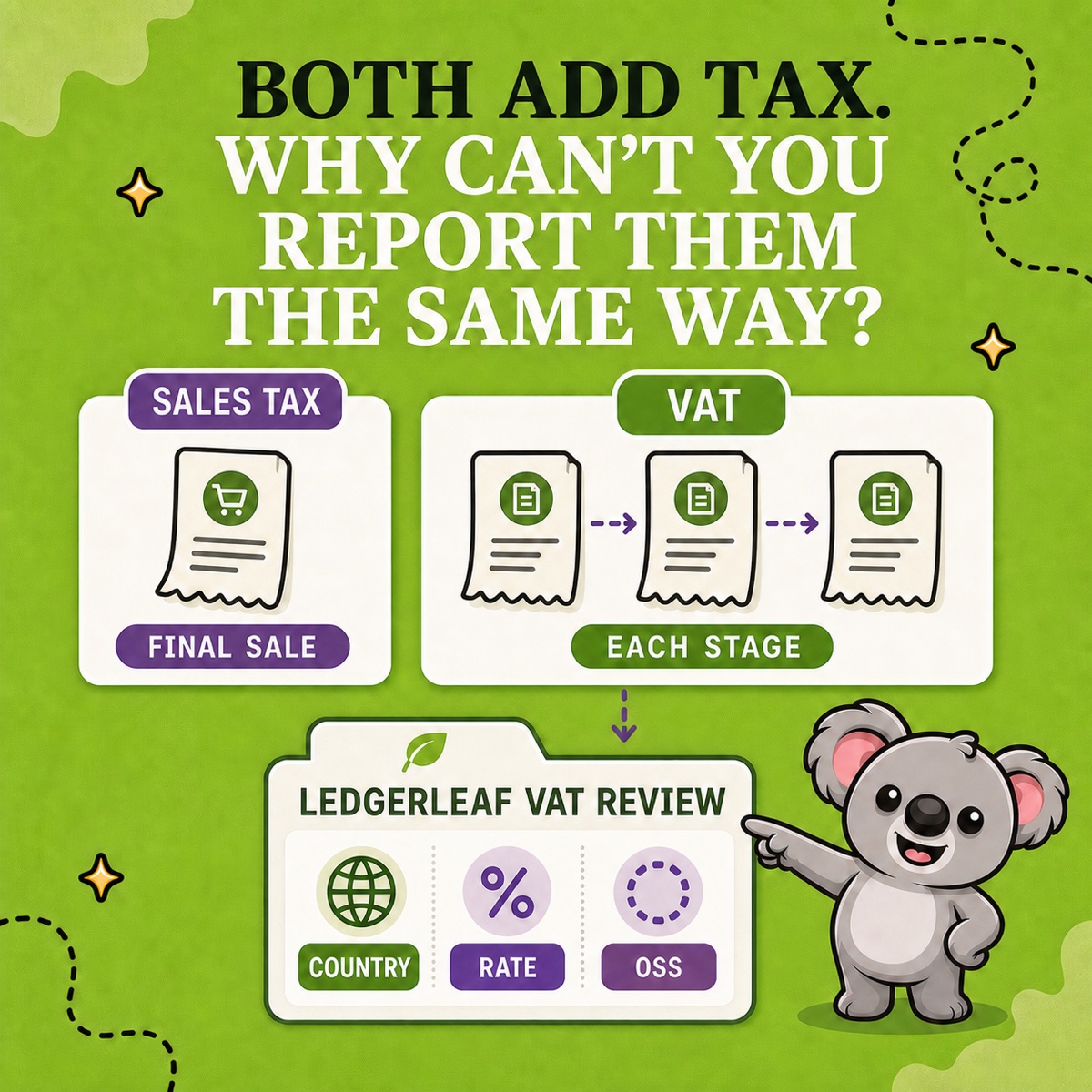
The useful test is whether every country-and-rate combination can be traced to the Shopify orders that produced it. LedgerLeaf Pro makes that the working route: review VAT by destination country and rate, open the transaction detail behind an unusual row, then export the same evidence for handoff.
Leafy’s Quick Answer
In LedgerLeaf Pro, set the exact period, EU OSS scope and payment-status filter. Review each destination country by rate, then trace any unexpected combination to its orders. Check the delivery address, product category, tax override, dispatch origin, registration and exemption status before deciding whether the row is correct. Export the country summary and transaction detail together.
This is general operational guidance, not tax advice. Confirm the applicable country, product treatment, rate, registration, and filing position with the relevant tax authority or a qualified adviser.
A country-and-rate row is a question, not a verdict
Shopify’s Taxes finance report records the tax country, tax name, rate, and tax charged for the selected period. Shopify normally determines the destination from the delivery address, then the billing address, then the POS address when earlier information is unavailable.
One country can legitimately contain several rates. The European Commission explains that each Member State sets its own standard and reduced rates within the EU framework, and that the correct rate can depend on the type of goods or services. That means “France appears at two rates” is not enough evidence of an error.
The better questions are:
- Which products and orders created each rate?
- Does the destination match the country row?
- Is the product category or an override controlling the rate?
- Does the row belong in this period and VAT scope?
A two-rate France example
Imagine a Shopify store sells printed books and clothing to France. Its LedgerLeaf country VAT breakdown shows:
| Country | Rate | Orders | What to test |
|---|---|---|---|
| France | 20% | 18 | Do these rows trace to goods using the standard rate? |
| France | 5.5% | 4 | Do these rows trace to qualifying books? |
France’s tax authority lists 20% as the standard rate and 5.5% for books, among other qualifying supplies. If the four lower-rate orders all contain correctly categorised books, the second row may be exactly what the review should show. If the same clothing SKU appears at both rates, you have found a specific exception to investigate instead of a vague country-total mismatch.
Do not copy this example into your settings. Verify the current treatment for your product and destination using the relevant national authority or the EU’s VAT rate resources.
Run the review in LedgerLeaf
1. Lock the boundary
Set the exact start and end dates in LedgerLeaf Pro, then record the payment-status choice and EU OSS scope when relevant. Two reports cannot agree reliably when their periods or filters differ.
2. Read country and rate together
Use the country VAT breakdown to scan every country-and-rate pair. Start with a new rate, a zero-tax row, a country you did not expect, or a combination that changed sharply from the previous review. The goal is not to force one rate per country; it is to explain why each row exists.
3. Trace the unusual row
Open or export LedgerLeaf’s transaction detail for the combination and inspect the Shopify orders behind it. Shopify’s current EU and UK tax guidance says product categories can determine VAT rates by product type and destination, while a tax override takes precedence. Address validation, dispatch origin, regional variations, unsupported order types, registrations, and customer exemptions can also change the result.
That is the memorable LedgerLeaf connection: country and rate show where to look; transaction detail shows what to fix—or what to leave alone.
4. Test the explanation before the next live sale
If the review points to a configuration issue, confirm the correct treatment first. After an authorised change, Shopify recommends using a draft order with the relevant product and delivery address to check the calculated rate. Draft orders do not affect the shop’s order count or tax reports.
5. Export one review pack
Save the LedgerLeaf country-and-rate summary, detailed tax CSV or XLSX, the filters used and a short note for every investigated exception. Add the OSS-by-country CSV when it belongs to the workflow. This turns one resolved anomaly into a repeatable review instead of a result that has to be rediscovered next period.
Leafy’s Watch-Out
A familiar rate can still be wrong for a particular product, region or date. Use LedgerLeaf to find and trace the row; use the current tax authority source or your adviser to decide the treatment.
Do not ask whether a country has one “correct Shopify VAT rate.” Ask whether every rate in that country has a clear transaction trail. LedgerLeaf keeps that trail visible from summary to export.
Try LedgerLeaf Pro’s VAT country and rate review in Shopify.