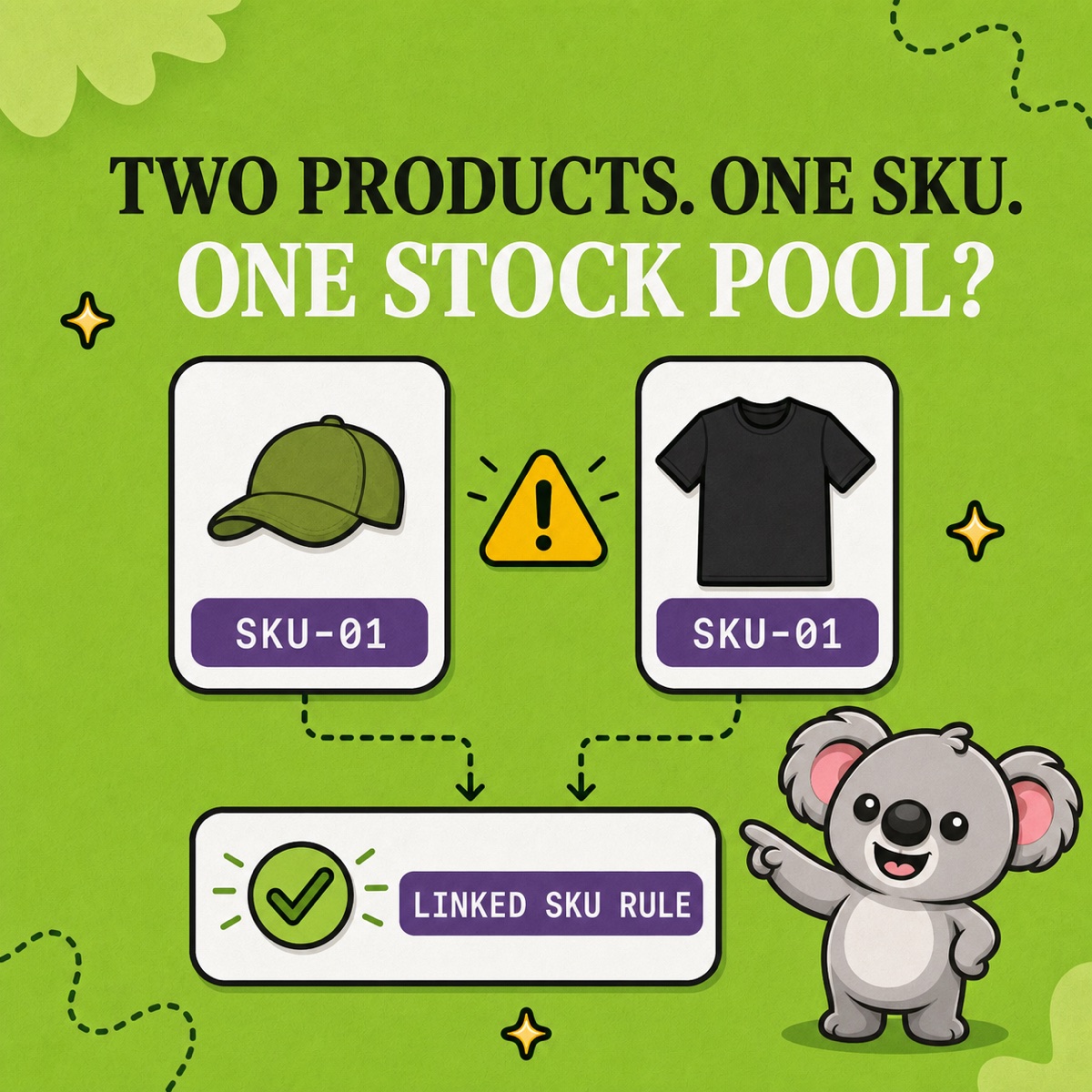
When Shopify says 31 units and the shelf holds 27, use the physical count to correct Shopify’s On hand quantity at that location. But do not stop at the adjustment if several listings or bundles draw from the same stock. Reconciliation has two jobs: correct the quantity, then make sure the relationships that move that quantity are still right.
That second job is where LedgerLeaf Pro matters. Its reviewed SKU rules keep linked products and bundles aligned after the count, so the discrepancy is less likely to return as soon as another order changes one of the connected records.
Leafy’s Quick Answer
Count one location at a time, compare the physical units with Shopify’s On hand quantity, recount the differences, and use Set to with the Count reason for confirmed corrections. Then review the affected linked-SKU and bundle rules in LedgerLeaf Pro and test one inventory change before reopening normal stock movements.
Count On hand, not Available
Shopify separates inventory into states because one number cannot answer every stock question. On hand is everything physically present at a location. It is the sum of Available, Committed, and Unavailable units. Incoming stock is not on hand until it has been received.
That means a shelf count should be compared with On hand—not Available. If Shopify shows 31 On hand, including 4 committed and 2 unavailable, it shows 25 Available. A confirmed physical count of 27 reduces On hand by 4 and Available by the same 4 units; the committed and unavailable units still need their own operational explanation.
Shopify’s current inventory-state guide explains these definitions, while its quantity-adjustment guide recommends Set to when an exact physical count is known.
Reconcile one location and one stock pool at a time
Use a controlled count window so sales, returns, receipts, and transfers do not keep changing the target while staff count. Then:
- Choose one Shopify location. Export or record its current inventory immediately before counting.
- Count by SKU. Keep damaged, quality-control, and buffer stock visible in the physical total, then identify why those units are unavailable.
- Compare physical On hand with Shopify On hand. Recount every meaningful variance before editing anything.
- Set the confirmed quantity. In Shopify, enter the exact On hand count, select the Count reason, review the pending changes, and save.
- Review the evidence. Shopify records who changed the quantity, when it changed, and why in inventory adjustment history.
For a large catalogue, Shopify’s stock CSV process can carry the same reconciliation in bulk. Its all-states export includes separate On hand (current) and On hand (new) columns and rejects an outdated import when the current quantity has changed, which helps prevent a stale count file from overwriting newer activity.
Count the physical pool once, then check every Shopify relationship
Suppose one olive mug is sold through a core listing, a gift listing, and a two-mug bundle. The shelf contains 27 mugs—not 27 for each listing. Count the physical pool once, identify every Shopify SKU that depends on it, and correct the definitive component quantity.
Then open LedgerLeaf Pro’s Stock workspace and review the rules covering those SKUs. LedgerLeaf supports readable linked-SKU patterns and parent/component bundle rules, with minimum, maximum, or exact sync logic for the intended relationship. Check that the rule still matches only the products you counted and that its logic describes the real shelf arrangement.
This is the memorable division of work: Shopify records the confirmed count; LedgerLeaf keeps the connected stock relationship from drifting after the count. Without the reviewed rule, a gift-listing sale or bundle order can turn today’s clean correction into tomorrow’s mismatch.
Leafy’s Watch-Out
Do not add together quantities from listings that represent the same physical units. Count the stock pool once, review the LedgerLeaf rule that connects it, then test one sale, return, manual adjustment, and restock before treating the reconciliation as finished.
Finish with a short exception trail
Record the count date, location, person responsible, confirmed variance, Shopify adjustment reason, and any explanation for damaged, missing, or misplaced stock. For linked products or bundles, note the LedgerLeaf rule reviewed and the small test performed afterward.
The goal is not merely to make two numbers match for a moment. It is to leave Shopify with the right On hand quantity and LedgerLeaf with the right rule for what happens next.
Keep linked Shopify stock aligned after every physical count with LedgerLeaf Pro.