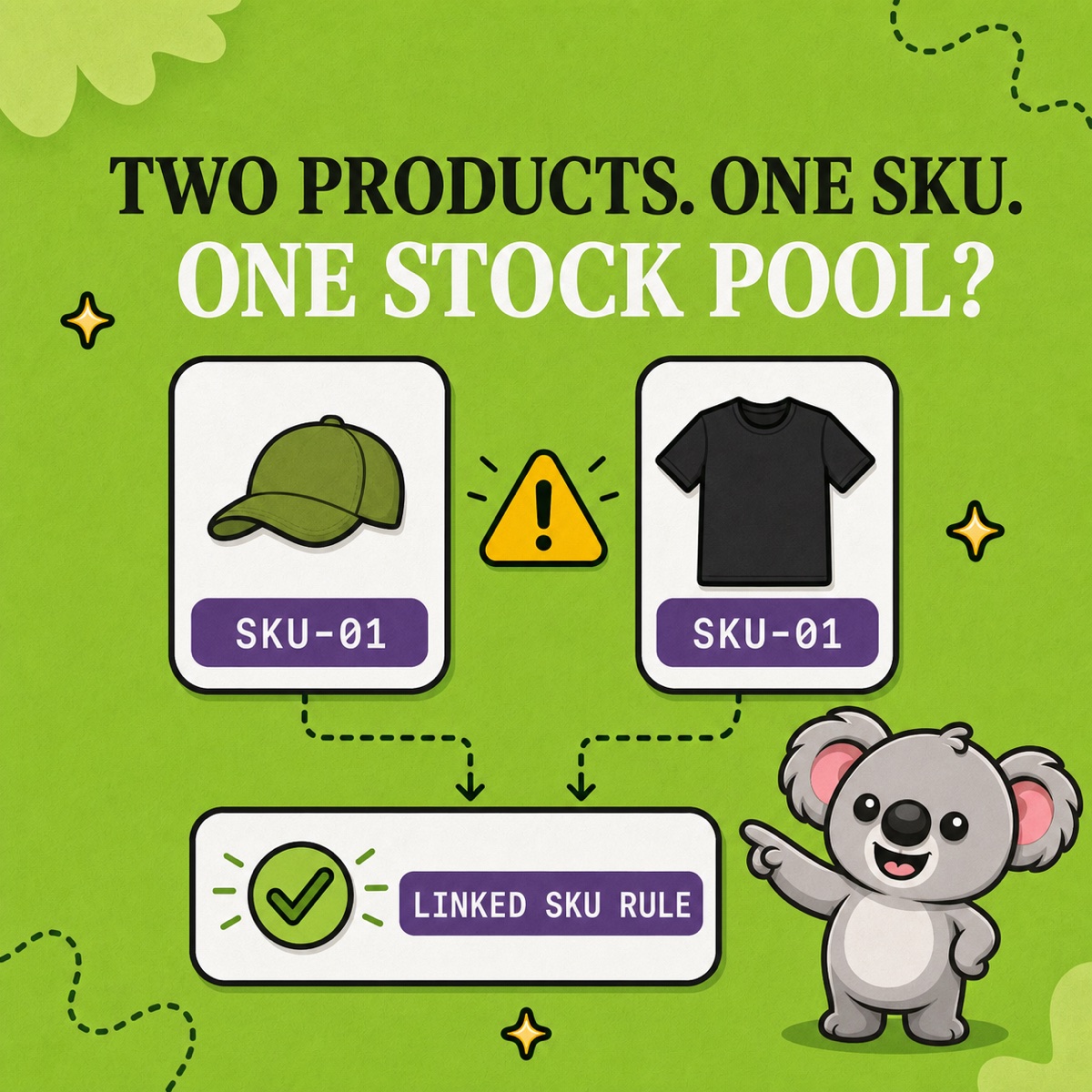
A Shopify stock adjustment should answer three questions: what should the quantity be now, why did it change, and is this SKU part of a shared-stock relationship? Use Set to when you know the correct final quantity. Use Adjust by when you know the movement—such as stock arriving, being removed, or moving into an unavailable state.
The first two answers correct one Shopify record. LedgerLeaf Pro makes the third answer operational: its linked-SKU and bundle rules tell you which related products should stay aligned after the change. An adjustment is not finished when one number is right but another listing for the same stock is still wrong.
Leafy’s Quick Answer
First check whether the SKU is covered by a LedgerLeaf linked-SKU or bundle rule. Then choose the Shopify location and stock state. Use Set to for an exact count; use Adjust by for a known increase, decrease, or movement. Add the most specific reason, save, and verify both Shopify’s adjustment history and the full LedgerLeaf stock relationship.
Set to replaces the number; Adjust by explains the movement
Shopify’s current quantity-adjustment guide separates the two methods clearly:
- Set to replaces the selected quantity with a final number. If a physical count proves that On hand should be 24, set it to 24 and use the Count reason.
- Adjust by adds, subtracts, or moves a known number of units. Use it when 12 units arrive, two are removed, or three move from Available into Quality control.
Do not treat Available and On hand as interchangeable. On hand includes Available, Committed, and Unavailable stock at a location. Moving two units from Available to Damaged lowers what can be sold, but the units remain On hand. Removing two discarded units from inventory lowers On hand as well.
Before either method, check the active LedgerLeaf rule for that SKU. Confirm whether it belongs to a linked set or bundle and whether the rule’s minimum, maximum, or exact-sync behaviour still matches the physical stock model. That prevents a locally sensible edit from being the wrong change for the relationship.
Shopify holds edits as pending until you confirm the row and click Save, so use that pause to check the SKU, location, state, sign, and reason together.
Use the reason as evidence, not decoration
Shopify provides reasons including Correction, Count, Received, Return restock, Damaged, Theft or loss, and Promotion or donation. Choose the narrowest truthful label. “Correction” is useful for a genuine data error; it should not become the automatic answer to every unexplained difference.
For example, if an olive mug moves from 28 to 24:
| What you know | Shopify method | LedgerLeaf check |
|---|---|---|
| A recount confirms 24 | Set to 24; Count | Verify every linked listing represents the same 24 units |
| Four broken mugs were discarded | Adjust by -4; Damaged | Check whether the SKU is a bundle component or linked product |
| The number changed unexpectedly | Do not guess; read history | Review any rule or app named in the trail |
Reasons can be added to desktop adjustments, but Shopify says the Add reason option is not available in its mobile app. If the reason matters to your control trail, make the adjustment from desktop rather than leaving the next reviewer to infer it.
Read history before correcting an unexplained change
Shopify’s adjustment history shows the activity, creator, quantity change, and resulting stock-state totals for a tracked product or variant. It also records automatic events from orders, transfers, Shopify processes, sales channels, and third-party apps.
That distinction matters. A stock drop caused by a sale is not the same problem as a manual count, and an app-created adjustment should be investigated at the rule or integration that created it. Shopify shows only the last 180 days on the product or variant history page. For a wider review, its Stock adjustment changes report covers adjustments across a selected period, while Stock adjustments by count helps compare event frequency by staff member, location, app, or reason.
Let LedgerLeaf carry the relationship after the adjustment
Now suppose MUG-OLV-CORE and MUG-OLV-GIFT are separate Shopify variants that sell the same physical mugs. Shopify can explain why one variant moved from 28 to 24, but the history does not make those two stock records one shared stock pool.
Open LedgerLeaf Pro’s Stock workspace and review the linked-SKU rule that matches them. Confirm the products in scope and whether minimum, maximum, or exact-sync logic describes the real relationship. For a bundle, check the parent and component SKUs instead. Then make one small, controlled test and verify the resulting quantities in Shopify.
This is the useful division of work: Shopify explains the adjustment; LedgerLeaf keeps the connected stock relationship operational after it. Without the rule, a correct adjustment to one listing can leave its linked listing or bundle telling a different stock story.
Keep linked Shopify stock aligned after every adjustment with LedgerLeaf Pro.