Your Shopify conversion rate can suddenly drop because the traffic mix changed, sessions are measured differently, or fewer shopping sessions end in a purchase. Check which one happened before discounting products or replacing your theme. A lower percentage deserves investigation, but it does not automatically mean sales fell.
The useful outcome is a decision backed by records. LedgerLeaf gives you a repeatable sales check alongside Shopify’s session reports. When the evidence reveals recurring unwanted visits from an unserved country, ShieldLeaf turns that finding into a storefront access rule you can preview.
Leafy’s Quick Answer
Compare the same reporting periods and filters, verify orders and sales in LedgerLeaf, then trace the falling rate to a traffic source or shopping step. Use ShieldLeaf when the finding calls for a specific country access rule.
1. Check what the percentage is measuring
Shopify’s online-store conversion rate measures sessions that resulted in a purchase divided by total sessions. It is not simply your total order count divided by visits. A customer can place multiple orders in one session, so keep orders and purchasing sessions separate. Shopify explains that distinction in its customer and session guidance.
Compare completed periods of similar length and weekday mix. Keep the sales channel and report filters consistent.
If the change begins around September 21–23, 2026, check Shopify’s session-measurement update. It changed session counting and excludes identified bots by default in session-related reports. Orders and sales were unaffected. Establish a comparable baseline after that change before treating the lower rate as lost demand.
2. Anchor the diagnosis in LedgerLeaf sales records
Open Sales in LedgerLeaf and use Edit filters to select the affected period. Check Total orders and Total gross sales in the Sales overview, then repeat for your comparison period with the same payment and country settings. Use the corresponding Online Store orders for the comparison with Shopify’s online-store conversion report.
Create a small export containing the order ID, date, country, currency, and sales amounts you need. Save it as a Column preset and export XLSX or CSV for each period. LedgerLeaf Free includes customisable sales exports and saved presets, so the next investigation can reuse the same file structure. These controls appear on the current LedgerLeaf product page.
Use Total orders for the order count. The separate Rows in preview value counts export rows and can differ. Keep currencies separate when comparing amounts.
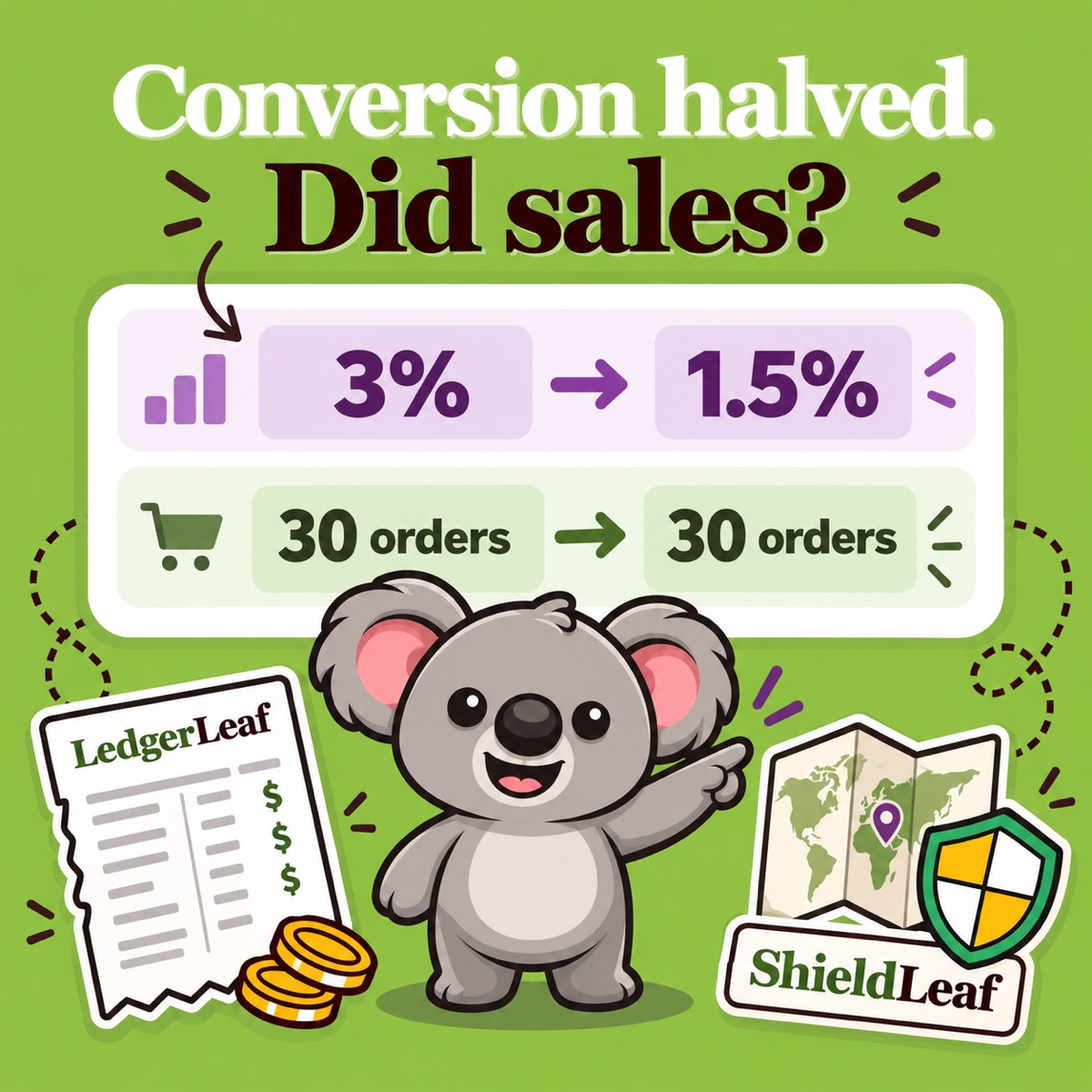
For example, suppose two comparable periods have these illustrative results. Each purchasing session produces one order in this example.
| Measure | Earlier period | Affected period |
|---|---|---|
| Shopify sessions | 1,000 | 2,000 |
| Shopify purchasing sessions | 30 | 30 |
| Shopify conversion rate | 3% | 1.5% |
| LedgerLeaf total orders | 30 | 30 |
| LedgerLeaf total gross sales | €1,800 | €1,800 |
The percentage halved, but recorded orders and gross sales held steady. Investigate the additional sessions before changing an offer that is still producing the same sales.
3. Turn an unwanted country pattern into a ShieldLeaf rule
In Shopify’s sessions reports, check country and referrer for the extra visits. Keep the Human or bot session filter consistent between periods. Where supported, include bots temporarily to investigate them, then return to your comparison view. Shopify’s bot-filtering guide explains that classification is conservative.
Suppose the extra 1,000 sessions repeatedly come from a country you do not serve, with no relevant campaign or purchasing activity. Confirm that excluding that country matches your market decision. Customer country in a sales export and session geolocation are different evidence, so do not treat them as interchangeable.
Filtering a report leaves storefront access unchanged. In ShieldLeaf → Protection, apply the access decision:
- Enable the ShieldLeaf app embed in your Shopify theme.
- Search for the specific country under Blocked countries and select it.
- Choose a blocked-access page or a useful redirect under Blocked visitor experience.
- Preview the handling privately, then turn protection on.
The ShieldLeaf Free plan includes one active blocked country and preview, covering this example without a monthly app charge. Pro adds wider country coverage and blocked-visit activity logs. Record the activation time beside your LedgerLeaf comparison files so the next review has a clear starting point.
4. If sales fell too, find the shopping step that changed
When LedgerLeaf also shows fewer orders, use Shopify’s Conversion rate breakdown to locate the change. Fewer cart additions suggest checking the landing page, offer, and product availability. Fewer completed checkouts suggest reviewing delivery charges, payment options, and the checkout experience for your selling market.
If availability is the problem and products share stock, resolve the relationship in LedgerLeaf Pro → Inventory. Use a Link SKU rule for products drawing on the same stock, or a Bundle rule for a parent SKU and its components. Select the calculation that matches the stock relationship and review the affected variants. The inventory workspace keeps that recurring stock task inside Shopify rather than leaving you to update each listing manually.
Keep the next review repeatable
Reuse the LedgerLeaf sales preset and the same Shopify report settings for the next comparable period. Check orders and sales in the markets you serve. After a ShieldLeaf rule, verify the visitor experience and review blocked activity if your plan includes logs. A blocked arrival can still appear in Analytics, so a higher rate alone is not the success test.
LedgerLeaf keeps the sales evidence consistent. ShieldLeaf puts a confirmed country decision into practice. Together, they give the falling percentage a useful next step.