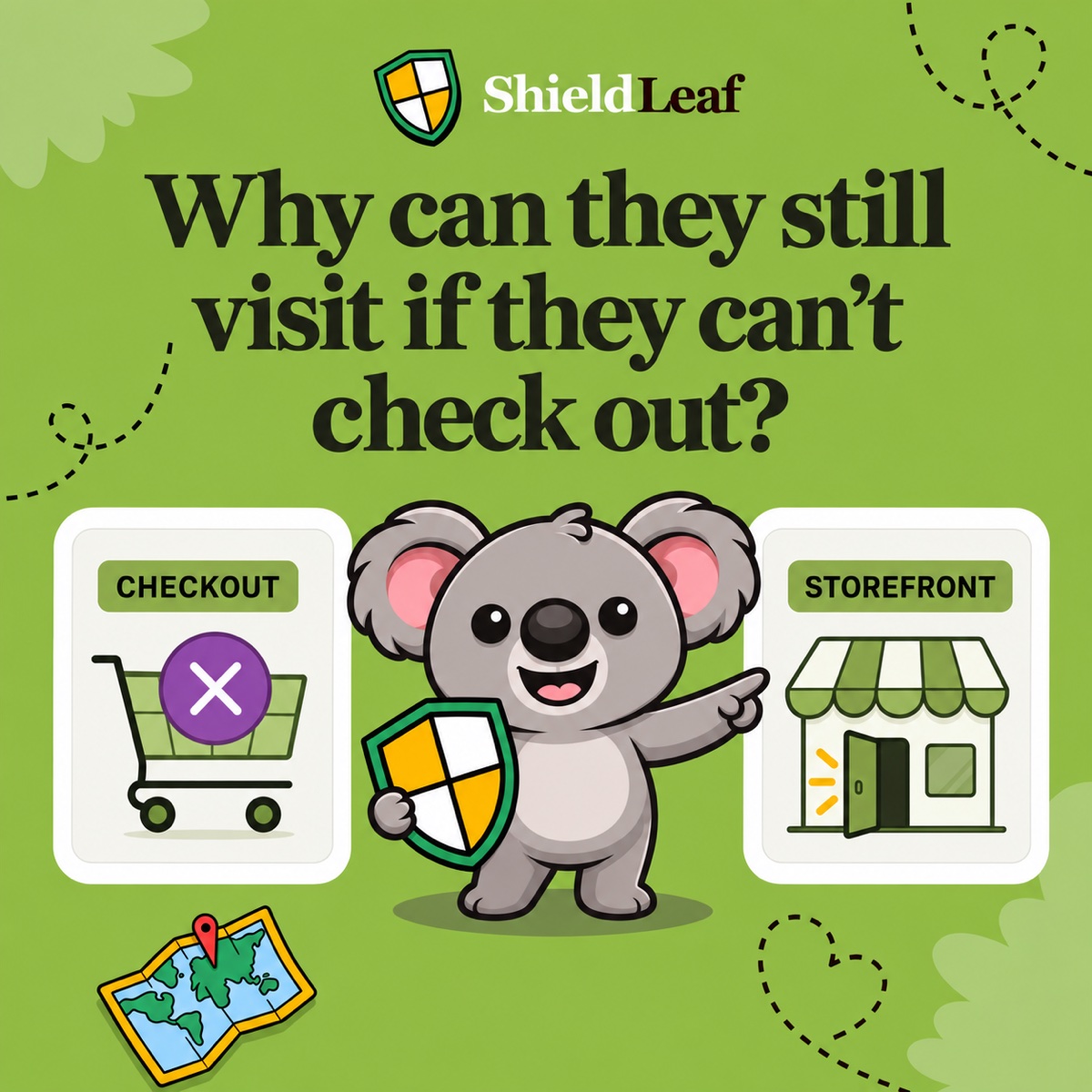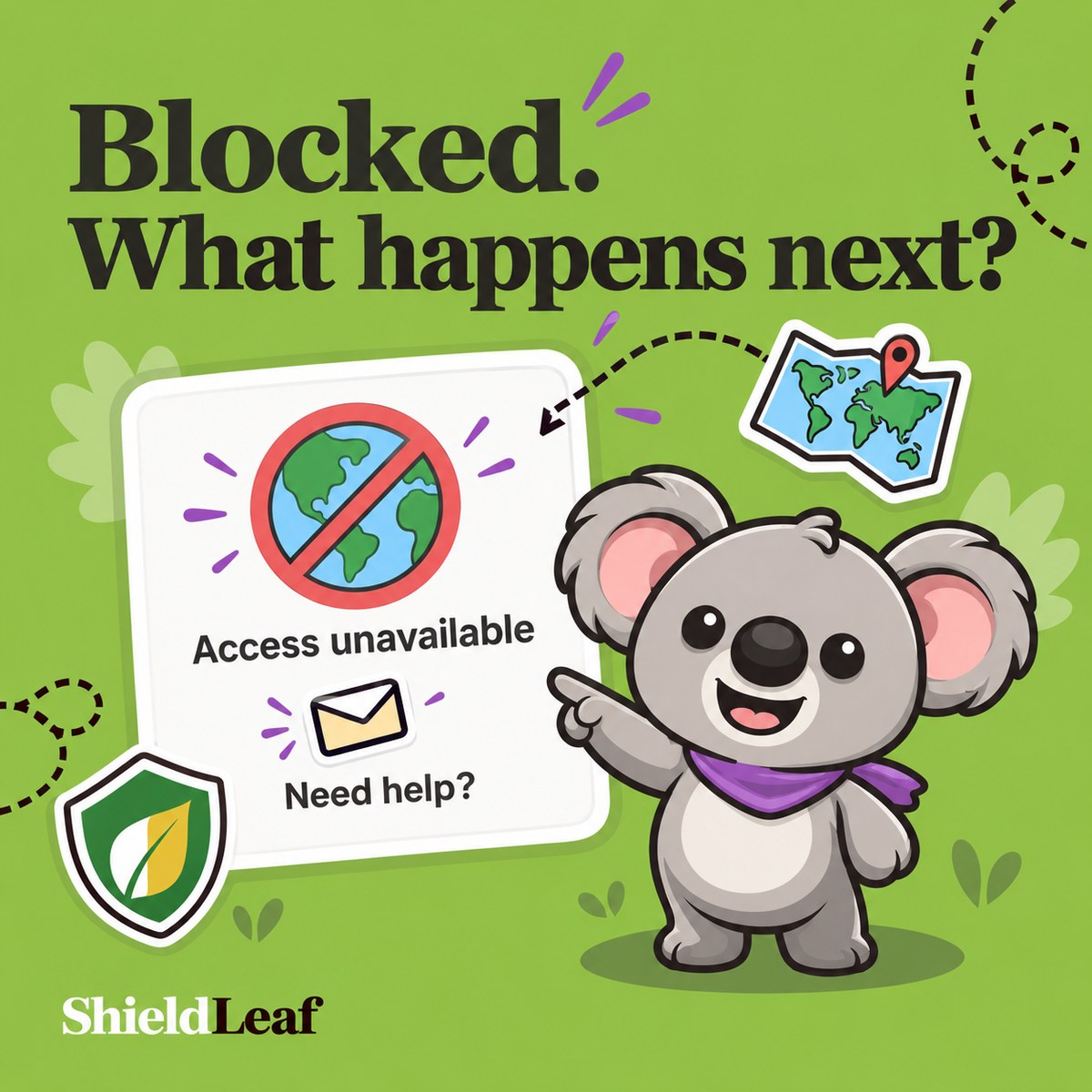
A country-blocked visitor should see a short explanation of the access restriction and, when appropriate, a way to contact your store or reach a useful alternative. The message should make the decision understandable without accusing the visitor of doing something wrong.
Imagine a customer follows a product link and reaches a page that only says “Access denied.” They cannot tell whether your store is broken, their account has a problem, or their location is outside your storefront policy. Your country rule may be intentional, but the explanation still needs work.
ShieldLeaf gives you control over that moment. Its Blocked visitor experience setting lets you choose a blocked-access page or a redirect, then preview the outcome privately. The useful connection is simple: ShieldLeaf sets the country boundary and lets you explain what happens there.
Write the message for someone who wanted to visit
Keep the blocked message focused on three questions.
- What happened? Access to this storefront is unavailable from the visitor’s region.
- What can they do next? Contact support if that is a route you offer.
- Is there somewhere useful to go? Use a redirect if another destination serves them.
Shopify’s guidance on clear error messages recommends plain language, an explanation, practical next steps, and wording that avoids blaming the user. Those principles also make sense for a deliberate access restriction.
In ShieldLeaf’s Blocked message field, a practical starting point is:
Access to this store is not available from your region. If you think this is a mistake, contact [your support email].
Replace the placeholder with an address your team monitors before saving. This is message copy, so it does not depend on a custom button, contact form, or HTML layout. Read the address in the preview and check that a visitor can use it.
Choose wording that reflects your actual reason for restricting access. If your decision concerns storefront access, say so. A shipping-only explanation can confuse someone who was trying to browse, research a product, or contact your business.
Configure that explanation in ShieldLeaf
Open Protection and review Selected countries first. The experience you are writing belongs to the country rule you selected, so confirm the selection matches your decision.
Then use Blocked visitor experience to make the message part of the rule:
- Under When a blocked visitor arrives, choose Show a blocked-access page.
- Enter your final copy in Blocked message, including the support address if appropriate.
- Use ShieldLeaf’s private preview to read the result as a visitor would.
- Enable protection after the message and country selection are ready, with the ShieldLeaf app embed enabled in your published theme.
You can manage this flow inside ShieldLeaf without editing theme code. The Free plan includes one active blocked country, the blocked page or redirect choice, and preview before going live, according to the current ShieldLeaf listing.
Use a redirect when it answers the visitor’s question better
Suppose you have a regional storefront or distributor that actually serves visitors from the selected country. Sending them there may be more useful than asking them to email you.
In ShieldLeaf, change the visitor experience to redirect and enter the destination in Redirect URL. A regional availability page can also work when it clearly explains where the visitor can shop or get assistance.
Check the destination before saving. It should open successfully, make its purpose clear, and stay accessible from the country you selected. A page that immediately sends people back to the protected storefront creates a loop. A generic homepage that offers no relevant information leaves the original question unanswered.
If you have no useful alternative destination, keep the blocked-access page and give it a clear message.
Leave a route for a mistaken location
Country rules act on the location detected for the visit. Shopify’s localisation documentation explains that IP-based geolocation can be inaccurate for VPNs, corporate networks, and some mobile carriers. A legitimate customer may therefore need help understanding an unexpected restriction.
A monitored support address gives that customer a way to ask. Have your team review the intended country rule and the customer’s situation before changing access. Avoid promising that a support request automatically removes the restriction.
Leafy’s Tip
In the ShieldLeaf preview, read the message on your phone. Can you understand the restriction and find the next step without zooming? Then check desktop too, and confirm an allowed-country visit still reaches the normal storefront.
A clear country boundary should feel deliberate from both sides. Use ShieldLeaf’s message or redirect controls to give the visitor the explanation you would want your own customers to receive.