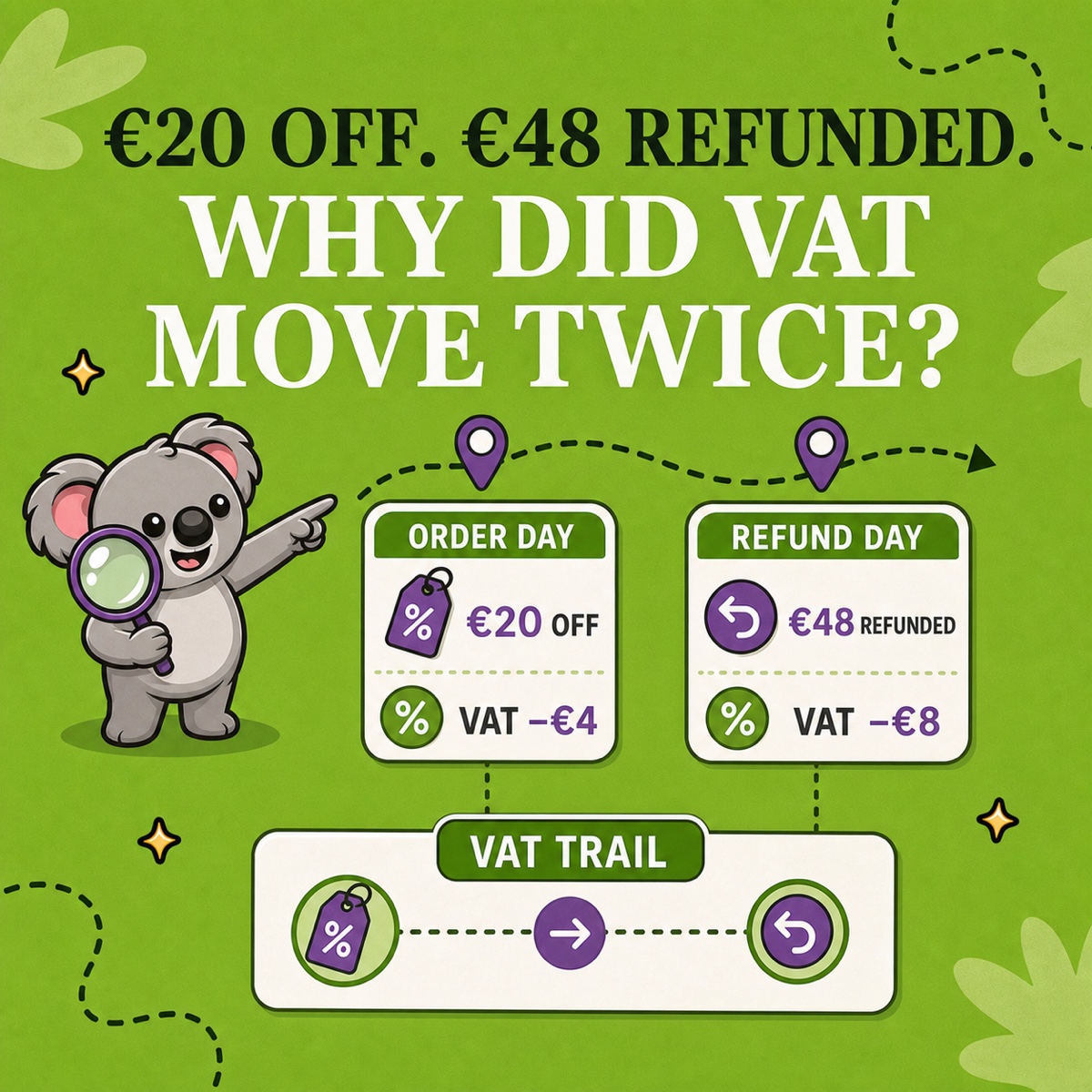
A €100 order receives a €20 checkout discount. Two weeks later, part of it is refunded. Your Shopify VAT numbers can move twice: once when the discount reduces the sale, and again when the refund reverses part of it.
Those movements are easier to review when they stay separate. LedgerLeaf Pro gives you one working route: review VAT by country and rate, trace the transaction behind the change, and export the same evidence for handoff.
Leafy’s Quick Answer
Shopify applies discounts before tax and reports later sales reversals as negative values on the date they are processed. In LedgerLeaf Pro, lock the period and VAT scope, trace each discounted or refunded order from the country-and-rate summary to the transaction detail and keep the original sale beside the later adjustment. If a refund crosses an already filed OSS period, preserve both dates and confirm the correction treatment before filing.
This is general operational guidance, not tax advice. Confirm the taxable amount, VAT rate, adjustment date, and return treatment with the relevant authority or a qualified tax adviser.
A discount and a refund are not the same VAT event
A checkout discount changes the amount the customer gives for the supply. The European Commission’s VAT taxable-amount guidance says discounts and rebates obtained at the time of supply are excluded from the taxable amount. It also says that when the price is reduced after the supply, the taxable amount must be reduced, subject to each country’s conditions.
Shopify’s reporting follows the two moments:
| Event | What Shopify reports | What to trace in LedgerLeaf |
|---|---|---|
| Discount at checkout | A negative discount on the order date, applied before taxes | Order, line allocation, taxable amount, country and rate |
| Later refund or reversal | A negative sales and tax adjustment on the processing date | Original order, adjustment date, refunded line or delivery, country and rate |
Shopify’s sales-report definitions say an order-level discount is proportionally allocated across its products and all discounts are applied before taxes. That allocation matters when one order contains products at different VAT rates: the headline discount code value is not enough to explain each VAT row.
See why VAT moved twice
Assume a single product uses a 20% VAT rate and the amounts below are before VAT:
| Moment | Taxable amount | VAT | Customer total |
|---|---|---|---|
| Original price | €100 | €20 | €120 |
| Checkout discount | −€20 | −€4 | −€24 |
| Discounted sale | €80 | €16 | €96 |
| Later partial refund | −€40 | −€8 | −€48 |
| Lifetime net | €40 | €8 | €48 |
The €4 VAT reduction belongs to the original sale calculation. The later €8 reduction belongs to the refund adjustment. If the refund is processed in another reporting period, a one-period view will not show the order’s lifetime net result—and that is not automatically an error.
This example deliberately uses one rate. For a cart-wide discount across different product rates, trace Shopify’s proportional line allocation instead of dividing the discount evenly or applying one blended VAT rate.
Run the adjustment review in LedgerLeaf
1. Lock the reporting boundary
Set the exact dates, payment-status choice, and EU OSS scope in LedgerLeaf Pro. Record those filters with the export. A sale-date report and a refund-date report cannot be reconciled until their boundaries are explicit.
2. Find the changed country-and-rate row
Review the LedgerLeaf country VAT breakdown for a sharp reduction, negative amount, or rate that moved unexpectedly. Then trace the row to the underlying Shopify transactions. The summary tells you where VAT changed; transaction detail tells you which order changed it.
3. Keep the original and adjustment together
For a discount, retain the original price, line or order-level allocation, discounted taxable amount, and VAT. For a later refund, retain the original order ID, refund date, affected line or delivery amount, taxable reversal, and VAT reversal. Shopify’s Total sales by order documentation confirms that discounts appear on the order date, while sales, delivery and tax reversals appear as negative values on the refund date.
4. Treat a filed-period crossing as a correction question
Do not silently overwrite a prior-period export or force the refund into the original sale row. The European Commission says a submitted OSS return is corrected in a subsequent return, identifying the earlier tax period, Member State of consumption, and resulting VAT correction. Preserve that evidence in LedgerLeaf, then confirm the exact filing treatment for your scheme and country.
5. Export one evidence pack
Save the LedgerLeaf country-and-rate view, transaction CSV or XLSX, the filters used and a short exception note. That is the memorable connection: LedgerLeaf keeps the order-day discount and refund-day reversal in one VAT trail.
Leafy’s Watch-Out
A €20 discount or €48 refund is not itself the VAT adjustment. Trace the affected taxable amount, rate, tax and processing date before changing a return.
Review Shopify VAT adjustments with LedgerLeaf Pro and make the next handoff easier to explain.