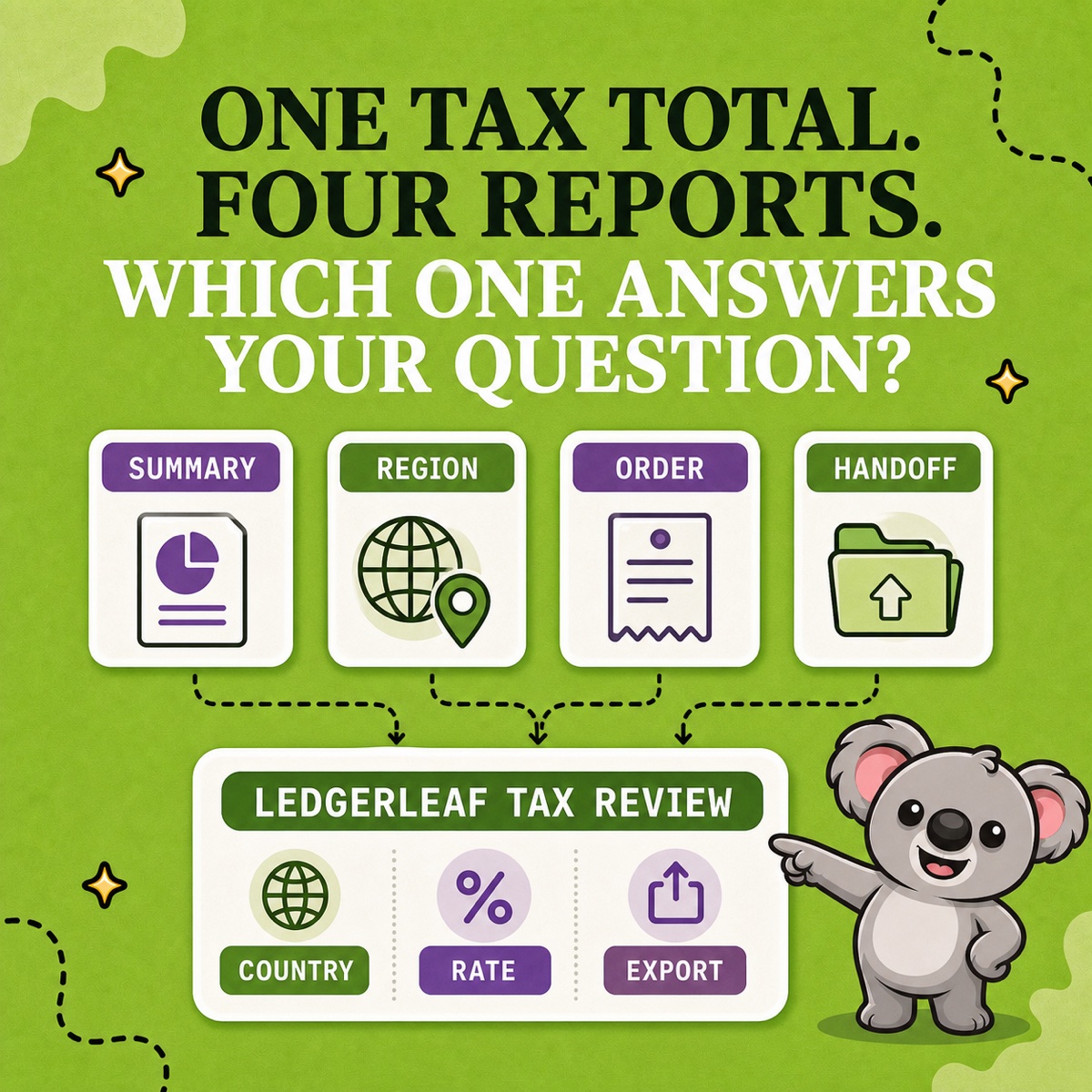
Shopify can show tax in the Finance Summary, Taxes report, regional sales-tax reports, Total sales by order, and—on some stores—a Managed Markets tax report. Those views are not duplicates. Each answers a different question.
The practical goal is not to crown one report as “the tax number.” It is to choose the right Shopify source, then turn the result into the same LedgerLeaf review pack every period.
Leafy’s Quick Answer
Use Shopify’s Taxes finance report for a tax-type and rate summary, an eligible United States or Canada sales tax report for regional detail, Total sales by order for the sales and refund context, and Managed Markets taxes only for its specific international-order use case. Then use LedgerLeaf Pro to review tax by period, country, and rate, trace transactions, and export CSV or XLSX evidence for handoff.
This is general operational guidance, not tax advice. A report can show what Shopify recorded; it cannot decide where your business must register, file, or remit. Confirm those decisions with a qualified adviser or the relevant tax authority.
Match the report to the question
| Your question | Start with this Shopify report |
|---|---|
| Which tax names, rates, and destinations produced the period total? | Taxes finance report |
| What do I need by US jurisdiction or Canadian province and tax type? | United States or Canada sales tax report, if eligible |
| Which sale, return, shipping charge, or refund changed tax? | Total sales by order |
| What domestic tax did Global-e pay to my store on qualifying international orders? | Managed Markets taxes, when applicable |
The choice matters because the same tax amount can appear inside a summary, a filing-oriented regional view, or an order-level sales record. The value may agree while the context is completely different.
Taxes finance report: the broad summary
Shopify’s finance reports documentation says the Taxes report groups applied sales taxes by fields including sales channel, tax country, tax region, tax name, rate, and amount. It normally derives destination from the shipping address, then billing address, then the POS address when earlier information is unavailable.
Use it when the first question is, “Where did this tax total come from?” It is a useful bridge from the Finance Summary into country, region, and rate combinations. It is not, by itself, proof of a filing obligation or the final shape of every return.
US or Canada sales tax report: regional detail
Shopify’s current tax-report overview separates dedicated reports for the United States and Canada. The US report drills from state into jurisdiction and transaction detail. The Canada report provides province summaries plus transaction detail by tax type, such as GST, HST, PST, or QST.
Availability is specific: Shopify says the US report requires a US store using Shopify Tax with USD store currency; the Canada report requires Shopify Tax in Canada with CAD store currency. Both reports display up to 1,000 rows in the admin, while CSV export accesses all rows for a maximum one-month period.
Use these reports when the regional breakdown is the question. Do not assume every store will see them, and do not stretch a one-month export silently across a quarter.
Total sales by order: the order story
The Total sales by order report puts taxes beside gross sales, discounts, sales reversals, shipping, and return fees. Shopify records tax on a return as a negative amount on the refund date; refunded shipping and its tax also appear as negative values in their own columns.
Use this report when a tax total moved and you need the commercial event behind it. It explains which order activity changed the number better than a rate summary does.
Managed Markets taxes: a specialist view
This is not a general international tax report. Shopify says it contains domestic taxes paid to the merchant by Global-e for Managed Markets orders only when Managed Markets is used in Canada or the United Kingdom. Use it for that narrow question; otherwise it is not your starting point.
Turn the right source into one LedgerLeaf routine
Knowing the reports is useful once. A repeatable review needs a working layer.
Suppose the Finance Summary shows €2,180 in tax for a quarter. The Taxes report explains the country-and-rate mix, and Total sales by order reveals that a late refund reduced one row. But next quarter, the same person still has to remember which reports, dates, filters, and files produced the answer.
LedgerLeaf Pro turns that investigation into a recurring route inside Shopify admin:
- Lock the boundary. Set the exact period, payment-status choice, and EU OSS scope when relevant.
- Review country and rate. Use the tax overview, country VAT breakdown, and rate views to find the combinations that deserve attention.
- Trace exceptions. Check transaction detail for refunds, discounts, blank destinations, zero-tax rows, or unfamiliar rates instead of adjusting a summary without evidence.
- Export the same pack. Save the OSS-by-country CSV when relevant, the tax-report XLSX or CSV detail, and a short note of the filters and exceptions reviewed.
That is where LedgerLeaf becomes essential: Shopify’s reports answer separate tax questions; LedgerLeaf turns the answers into one reproducible review and handoff pack. Without that layer, the next period starts again with a collection of useful but disconnected views.
Leafy’s Watch-Out
A collected-tax total is not automatically a tax-liability decision. Keep the report evidence clear, then let the appropriate adviser or authority determine registration, filing, and treatment.
Try LedgerLeaf Pro’s tax, VAT, and OSS reporting workflow in Shopify.