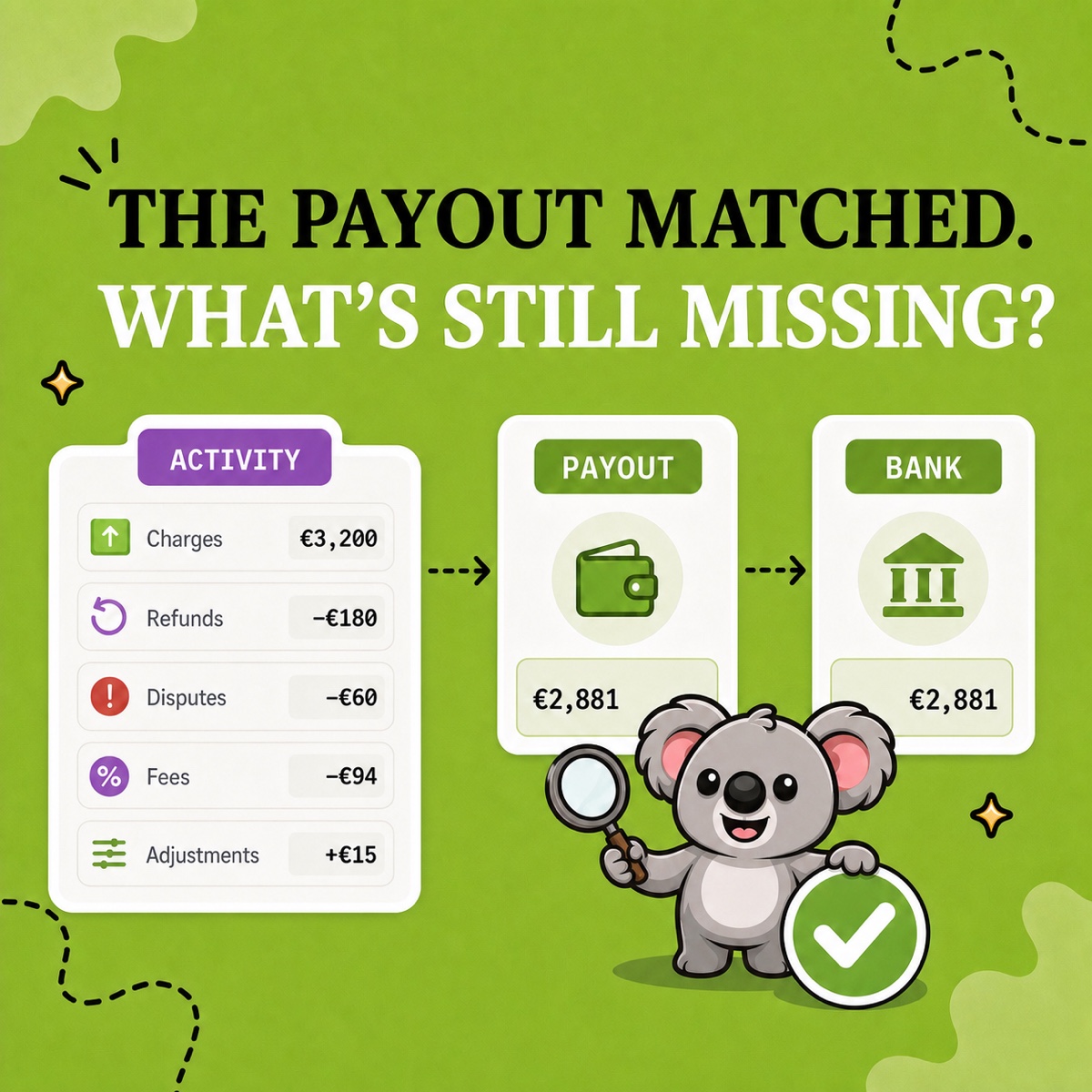
You find the €2,881 Shopify payout in the bank feed and mark it as matched. Then month-end arrives and your accountant asks how fees, refunds, disputes, and adjustments produced that amount. You reopen reports and rebuild the explanation, delaying the close even though the money arrived correctly.
Leafy’s Quick Answer
Match the net payout to the bank and explain the activity behind it. Use LedgerLeaf Pro’s payout reports and exports to prepare that check inside Shopify admin, alongside the sales records your accountant needs.
Why a bank match leaves work unfinished
A bank deposit tells you how much cash arrived. It does not tell you what customers paid before refunds and fees. Recording the deposit as sales loses that distinction and leaves your accountant asking for the missing detail.
Shopify’s Payments activity report describes movements through the payment balance, not accounting revenue. Its period summary and individual payout details also serve different purposes. Native Shopify provides the records, but assembling them with sales exports and bank notes still falls to you.
LedgerLeaf brings payout reporting and customisable sales exports into the same app. You can prepare a clearer handoff without another external account, keeping cash movements and sales evidence distinct.
Reconcile one payout in LedgerLeaf
1. Start with the deposit you need to explain
Open Payouts in LedgerLeaf Pro and review the Shopify Payments payout activity for the deposit you are checking. Export the payout data for your reconciliation. Keep the payout identifier, currency, and date with your bank note so two similar deposits cannot be confused.
For the example below, the bank statement shows €2,881. Match that amount in euros rather than choosing a nearby sales total. Record the bank’s receipt date separately from the payout date, since the transfer may take time to arrive.
2. Check what produced the €2,881
Use the exported payout data to prepare the breakdown for your accountant. Keep deductions and positive adjustments separate. This illustrative example uses the same amount as the article image.
| Activity behind one payout | Amount |
|---|---|
| Customer charges | €3,200 |
| Refunds | −€180 |
| Dispute activity | −€60 |
| Processing fees | −€94 |
| Adjustment | +€15 |
| Shopify Payments payout | €2,881 |
| Bank deposit | €2,881 |
The deductions total €334. The €15 adjustment reduces the difference between customer charges and the payout to €319. The bank match alone hides all of those movements.
Suppose your reconciliation shows €2,975 instead. The €94 difference matches the processing fees in this example. Check whether those fees were left out of your calculation before searching for a missing sale or changing a refund. Confirm the relevant transactions rather than assuming every €94 difference has the same cause.
The payout export lets you investigate a specific difference and send supporting records instead of leaving your accountant with an unexplained deposit.
3. Prepare the sales records beside it
Open Sales in the same app and export the relevant period in CSV or XLSX. Choose the columns your accountant uses for orders, payments, refunds, and tax, then save the selection as a column preset for next month.
Keep this sales file beside the payout export and bank note. The sales file explains the store’s activity. The payout file explains the cash transfer. Their totals can differ because of fees, deductions, and timing, so do not force the sales total to equal €2,881.
Next month, reuse the sales preset and prepare the new payout export. You avoid rebuilding the sales spreadsheet while keeping the evidence behind each deposit.
Investigate differences without losing the explanation
If the exported payout amount and bank deposit still differ, check the currency, payout status, and bank processing time first. Shopify’s payout documentation explains that Deposited means the funds were sent to the bank, which may still need time to process them.
If a period total differs, check the dates, pending activity, reserves, and holds. Shopify’s native activity report has a three-day data delay, so it may omit recent movements. Carry an explained outstanding amount into the next review instead of inventing an adjustment to make the numbers agree.
Save unresolved items with the exported records and the payout reference. This workflow covers Shopify Payments. Keep third-party gateway deposits separate so they do not appear as missing Shopify Payments money.
Keep the monthly cost proportionate
A2X starts at US$29 a month for its Mini plan, with up to 200 orders, and is built around sending summaries into accounting software such as QuickBooks or Xero. That adds cost and another connection to manage when your immediate need is payout evidence and sales files for your accountant.
LedgerLeaf Pro costs US$5.90 a month and includes payout reports alongside customisable sales exports. For that handoff, it is the simpler, lower-cost choice inside Shopify admin. You still review the bank match and accounting treatment with your accountant, but the preparation stays close to your store data.
Prices checked on 2 October 2026 against the Shopify listings for LedgerLeaf and A2X.
Try LedgerLeaf Pro’s seven-day trial and use one deposited payout to prepare your first complete handoff.