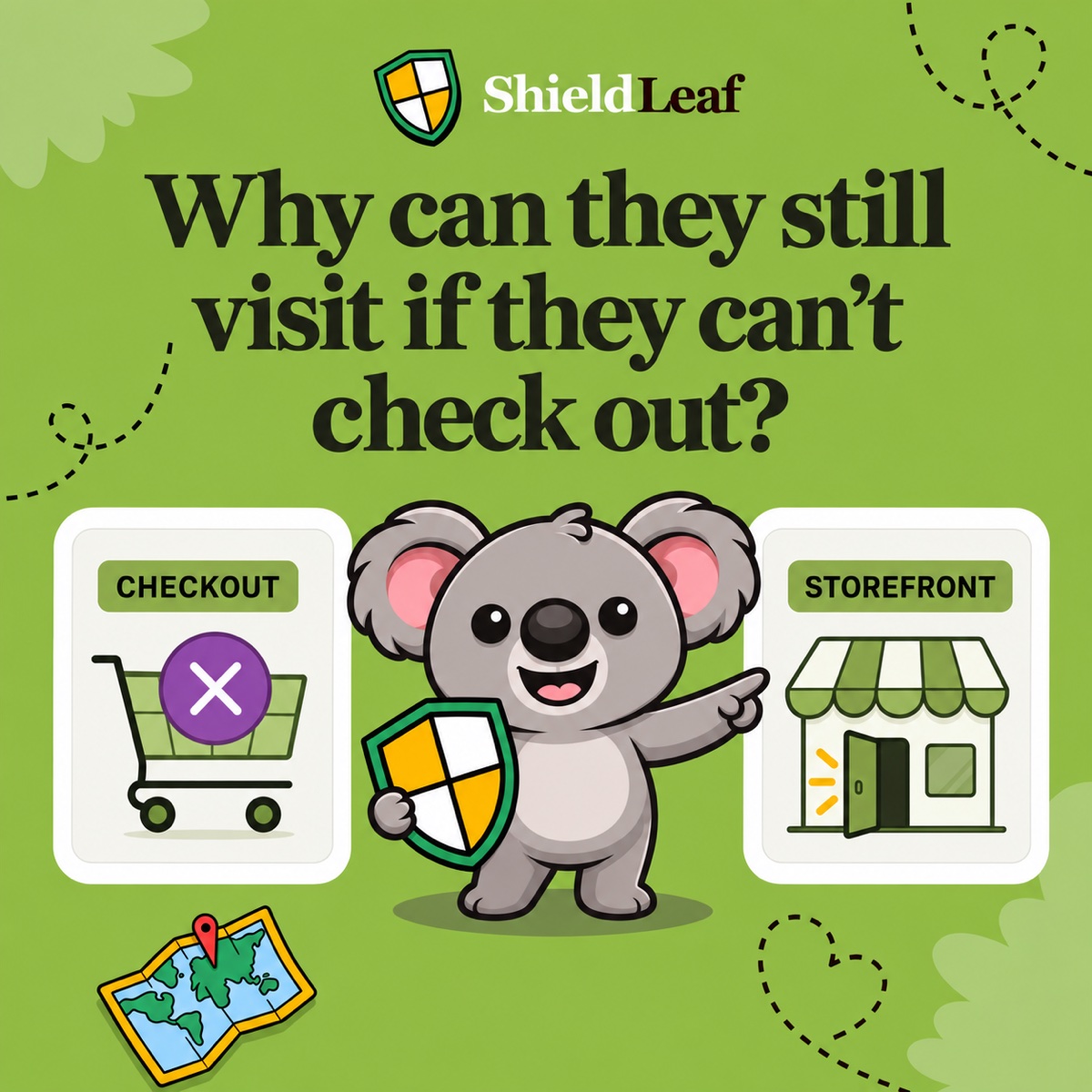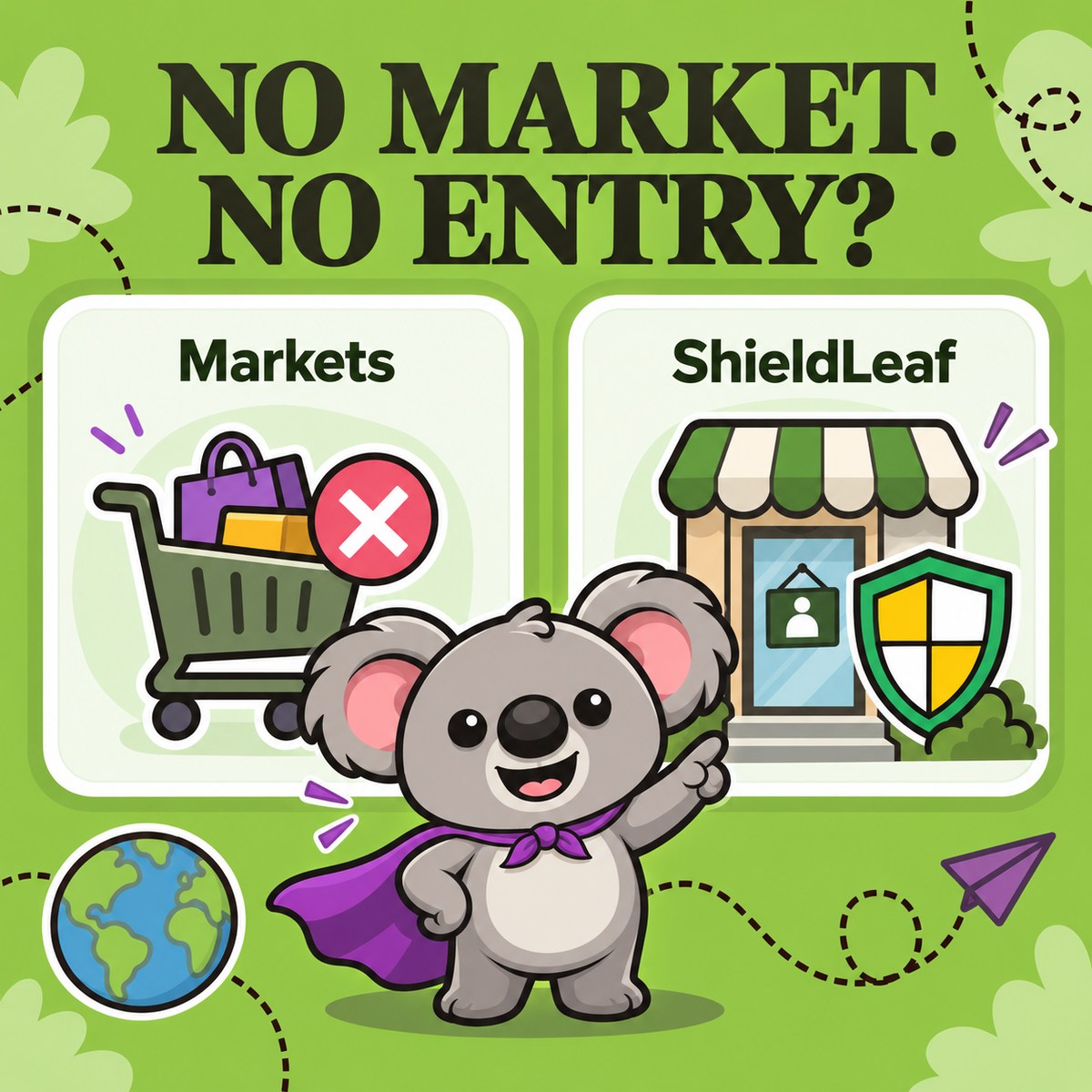
Shopify Markets manages where and how you sell. Country blocking manages which regional visitors can access your storefront. Removing a country from your selling setup does not automatically stop people there from browsing. When you want selected country traffic to receive a blocked page or a redirect, ShieldLeaf gives you that separate storefront control.
If you have deactivated a market and still see visits from that country, it is easy to think the setting failed. The more useful question is what you wanted to stop: a purchase, or the visit itself? That distinction tells you which control to change and saves you from repeatedly adjusting a selling setup that already does its job.
What each control actually changes
Shopify’s Markets documentation describes settings for products, prices, currency, language, domains, and shipping. Those shape the shopping experience for the customers you serve.
ShieldLeaf’s country rule handles a different decision. You select the country and choose what its visitors receive at the storefront: a blocked-access page or another URL.
| Your intended outcome | Control to use |
|---|---|
| Give French customers the right language, prices, and products | Shopify Markets |
| Stop selling to customers in a market | Shopify Markets and the relevant shipping setup |
| Send served customers to their localised market experience | Shopify’s automatic localisation |
| Show selected country traffic a blocked-access page | ShieldLeaf country rule |
| Send a selected country to an alternative destination instead of this storefront | ShieldLeaf country rule in redirect mode |
The practical connection is Markets sets up the sale; ShieldLeaf sets the country boundary at the storefront. They can work together without making every unserved country a blocked country.
Why an inactive market still gets visitors
Shopify confirms that customers in inactive markets receive the backup-region experience. Its backup-region guidance explains that unmatched visitors can browse and view products, although they cannot complete a purchase in that experience.
Changing the backup region changes the currency, language, and theme experience those visitors see. It does not create a country-blocked page. Likewise, an unavailable shipping destination concerns delivery and checkout, rather than closing the storefront to visits.
That explains the symptom, but it leaves your access decision open. If recurring traffic from a particular country is unwanted, ShieldLeaf lets you handle that country explicitly while keeping your customer markets configured for selling.
Two kinds of redirect that look similar
Shopify’s localisation guidance describes matching visitors to a market using location, browser language, market URLs, and saved choices. A French customer reaching the appropriate French-language experience is a successful localisation.
A ShieldLeaf redirect serves the outcome you chose for a restricted country. For example, you might send visitors to an authorised regional distributor rather than let them browse this storefront. The destination should help them, and it should not send them back into the same restriction.
Both involve routing a visitor, but their purposes differ. When the problem is unwanted access, changing a market domain or language preference does not establish the country rule you need. Set the visitor outcome in ShieldLeaf.
Keep the selling map and add one ShieldLeaf rule
Suppose your store serves Italy, France, and Germany. You have reviewed recurring unwanted traffic from Brazil and decided that those visits should receive a blocked page. This is an example of a business decision, not a judgement about every visitor from a country.
Keep your three customer markets ready for shopping. Then configure the access decision in ShieldLeaf:
- Open Protection. Search for Brazil or BR under Available countries and select it.
- Review Selected countries. Brazil should be selected; Italy, France, and Germany should remain unselected.
- Under Blocked visitor experience, choose a blocked-access page and enter a short explanation in Blocked message. Use Redirect URL instead if you have a useful alternative destination.
- Check ShieldLeaf’s private preview on desktop and mobile before turning protection on.
- Enable the ShieldLeaf app embed in your published theme, save, and activate protection for the selected country.
Normal setup uses a Shopify app embed without editing theme code, as the ShieldLeaf product page explains. The selected country and visitor experience stay together in one place, so your storefront decision is easy to review.
Leafy’s Tip
Write two short lists: countries you sell to, and countries you want ShieldLeaf to handle. They describe different decisions. Compare them before activating a rule so a customer market is not restricted by accident.
Check access separately from checkout
For this example, an ordinary connection detected in Brazil should receive the configured ShieldLeaf page. An allowed connection in Italy, France, or Germany should reach the homepage and a direct product link normally. Check both results after launch.
Changing the storefront’s country selector does not change your connection’s IP country. Use a trusted tester in the selected country or a suitable test connection. IP location can differ from someone’s actual location, especially with VPNs or shared networks, so check the detected connection when a result surprises you.
Confirm shipping and checkout eligibility separately in Shopify. A successful ShieldLeaf access test answers whether the visitor received your country rule; it does not verify your market’s products or shipping rates.
ShieldLeaf’s Free plan covers this one-country workflow, including a blocked page or redirect and preview. Pro adds unlimited countries, groups and presets, and blocked-visit activity logs. Start by previewing the one rule that matches your decision. You get a clear storefront outcome while your Shopify Markets setup continues serving the customers you welcome.