There is no single ‘best’ Shopify stock report. First use LedgerLeaf Pro to confirm that linked products and bundles follow the right stock rule. Then use Days of inventory remaining for stockout risk, Products by sell-through rate for movement, ABC product analysis for restocking priority, Month-end stock snapshot or value for a period-end record, and Inventory adjustment changes when a quantity needs explaining.
Those reports answer different questions, so their numbers should not be forced to match. They also assume each tracked variant represents the real stock available to it. LedgerLeaf Pro supplies the layer underneath: linked-SKU and bundle rules keep shared stock relationships explicit, while stock snapshots preserve a repeatable review trail. Choose the Shopify report only after that foundation is sound.
Leafy’s Quick Answer
Start in LedgerLeaf Pro and confirm that linked products and bundles follow the right SKU rule. Then name the decision you need to make. Open one Shopify stock report for that question, check its period and locations, and keep the result with the relevant LedgerLeaf snapshot and rule context.
Match the report to the stock question
Shopify’s current inventory reports guide separates quantity, movement, priority, value, and adjustment activity. LedgerLeaf provides the stock-relationship check that makes each answer safer to act on:
| Your question | Shopify report | LedgerLeaf check before acting |
|---|---|---|
| What might run out soon? | Inventory remaining per product | Confirm the ending quantity belongs to the right linked-SKU or bundle relationship |
| What is moving through stock? | Products by sell-through rate | Compare listings that share physical stock with their active rule in view |
| Which products deserve the closest attention? | ABC product analysis | Review related listings and components as one physical stock relationship |
| What quantity did we have at month-end? | Month-end stock snapshot | Keep the LedgerLeaf snapshot and active rule names beside the ending quantity |
| What was that stock worth in Shopify? | Month-end inventory value | Confirm costs and shared-stock rules, then preserve the period snapshot |
| Why did a quantity change? | Inventory adjustment changes | Compare the creator, app, state, and amount with the active LedgerLeaf rule |
Use Inventory adjustments by count for a related control question: which staff member, location, app, or reason is creating an unusual number of adjustments? It counts adjustment events, not units changed.
Why six reports can give six correct answers
A stockout forecast is not a month-end quantity, and a revenue grade is not a movement rate. Shopify calculates Days of inventory remaining from ending quantity divided by average daily sales over the previous 28 days. A variant with no sales in that window shows N/A because there is no rate for a forecast. If several listings draw from one shelf, read that forecast beside the LedgerLeaf rule that connects them rather than treating each Shopify row as a separate stock pool.
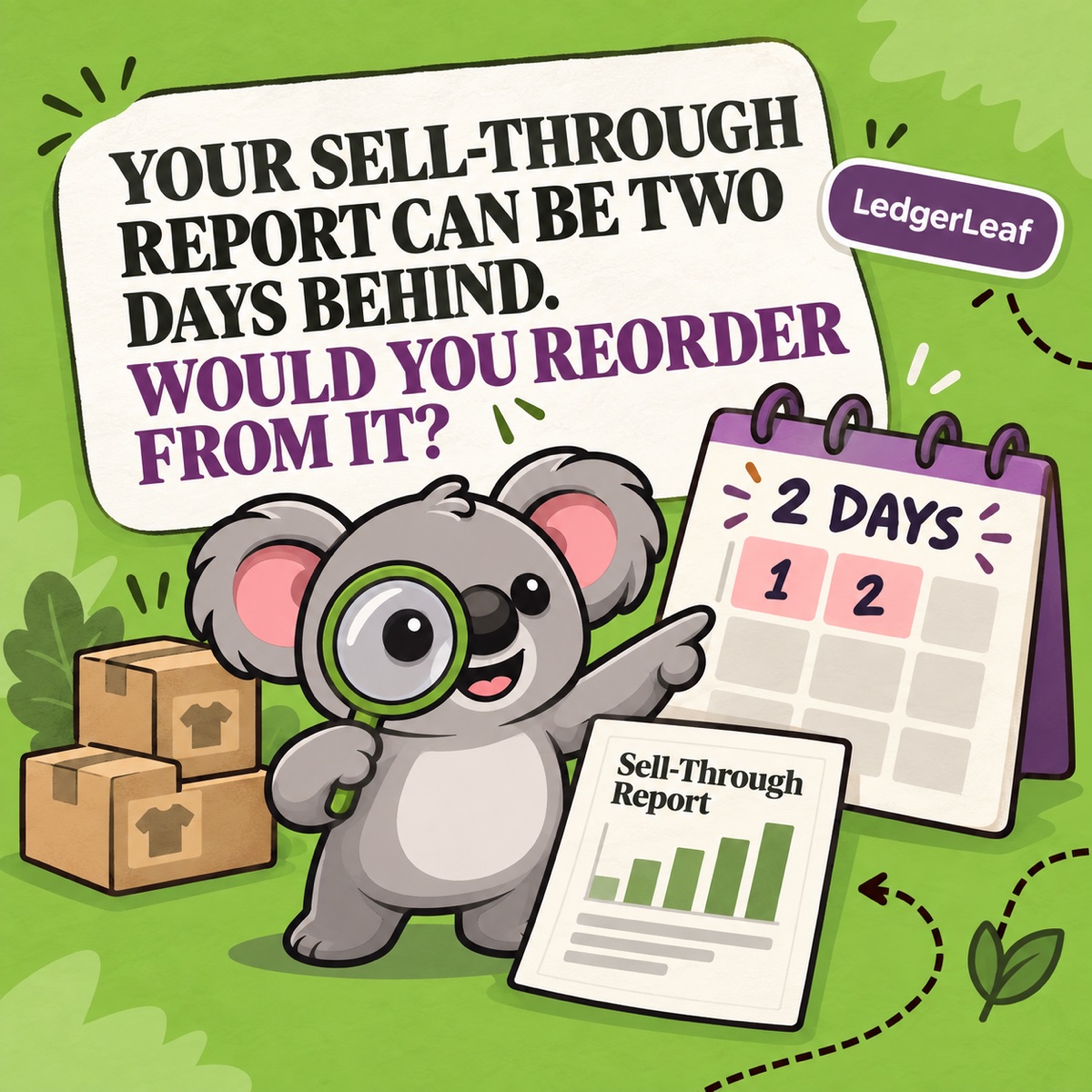
Sell-through rate answers a different question: units sold divided by units sold plus closing stock. Shopify notes that this report usually has about a two-day processing delay, so it should not be treated as a live shelf count.
ABC product analysis uses each variant’s contribution to revenue over a fixed 28-day window. Cost does not determine the grade. An A-grade item may deserve tighter availability controls, but the grade does not prove it is the most profitable item. LedgerLeaf rule context shows whether an A-grade listing, a related listing, and a bundle component are competing for the same physical units.
At period end, the snapshot and value reports use Available inventory. They exclude units committed to unfulfilled orders and incoming transfers. That is why the report can differ from On hand without either number being wrong.
Make the stock relationship true before reading the report
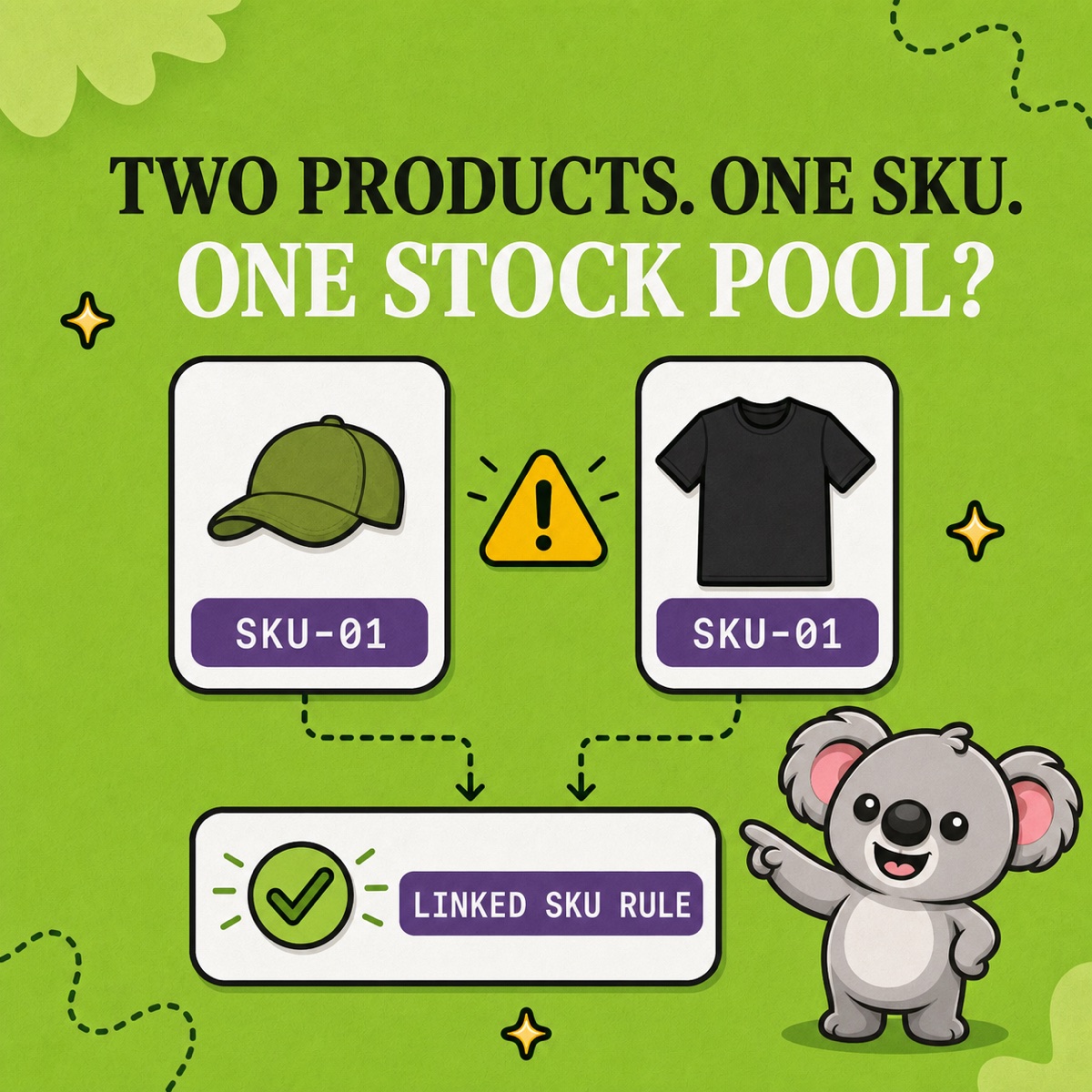
Suppose two Shopify listings sell the same olive mug, and a gift set also consumes that mug as a component. Shopify reports can describe each tracked variant record, but matching titles or similar SKUs do not create one shared physical pool.
In LedgerLeaf Pro’s Stock workspace, review the linked-SKU rule for the two listings and the bundle rule for the gift set. Preview the matched products, then confirm that minimum, maximum, or exact-sync logic still reflects how the stock is actually fulfilled. Test one small change before relying on the wider report.
This is the memorable division of work: Shopify tells you which stock question you are answering; LedgerLeaf keeps the linked stock behind that answer aligned. Remove the LedgerLeaf rules, and a polished report can still describe separate variant records that overstate what the shelf can supply.
Use one repeatable report routine
- Review LedgerLeaf rules. Confirm the SKUs, bundles, locations, and sync behaviour in scope.
- Name the decision. Stockout, movement, priority, close, value, or discrepancy—choose one.
- Open one Shopify report. Check its date basis, inventory state, and data delay before reading the result.
- Preserve the evidence. Keep the relevant LedgerLeaf stock snapshot and report-ready summary with the report output and any rule notes.
- Investigate exceptions. Use adjustment changes and adjustment counts when a number or pattern needs explanation.
Leafy’s Watch-Out
An analytics report is not a physical count. Shopify says historical stock metrics begin on 1 October 2023, and deleted locations do not remain in historical stock reporting. Keep count evidence and location notes beside the report when they matter.
Try LedgerLeaf Pro for linked-SKU rules, bundle sync, and stock snapshots inside Shopify.