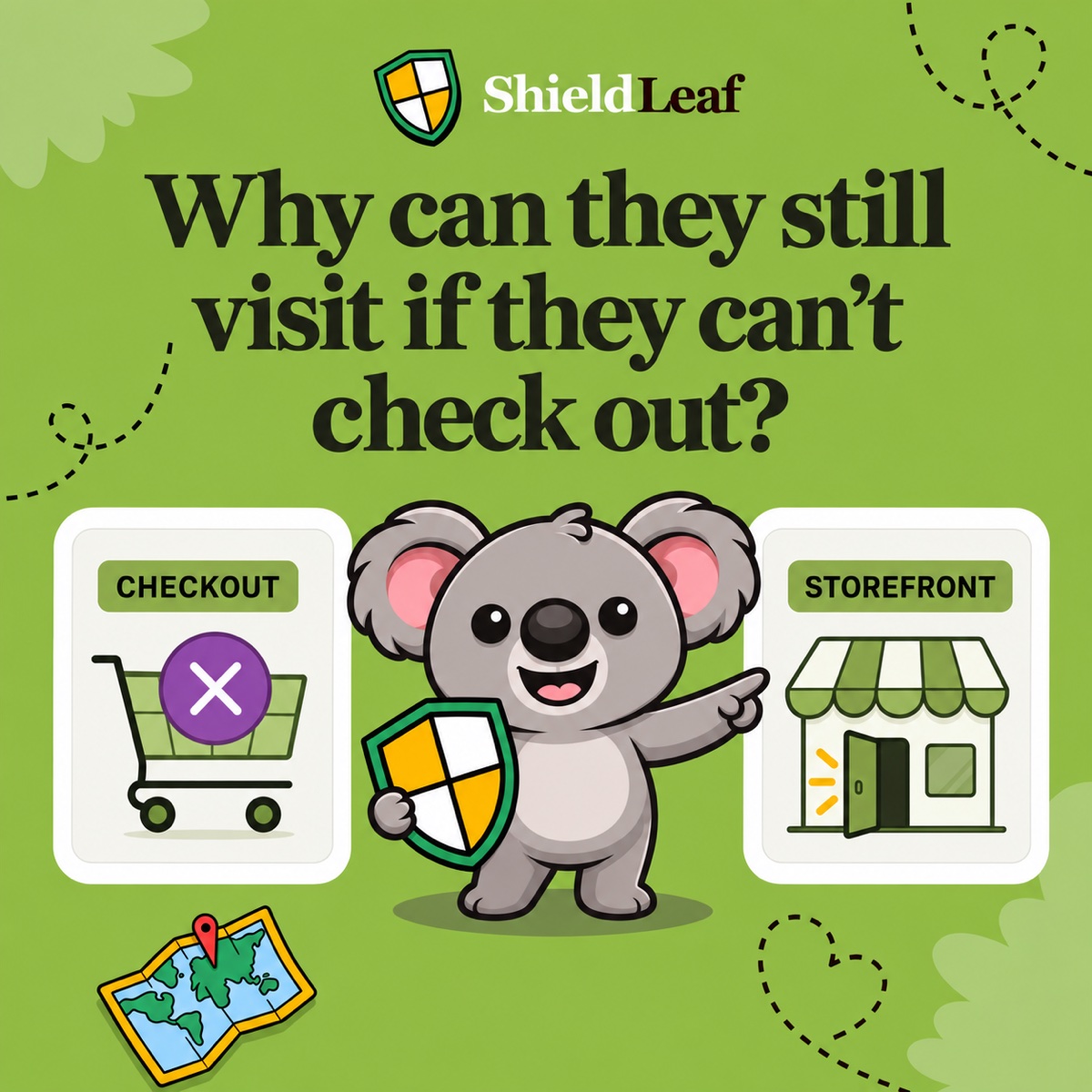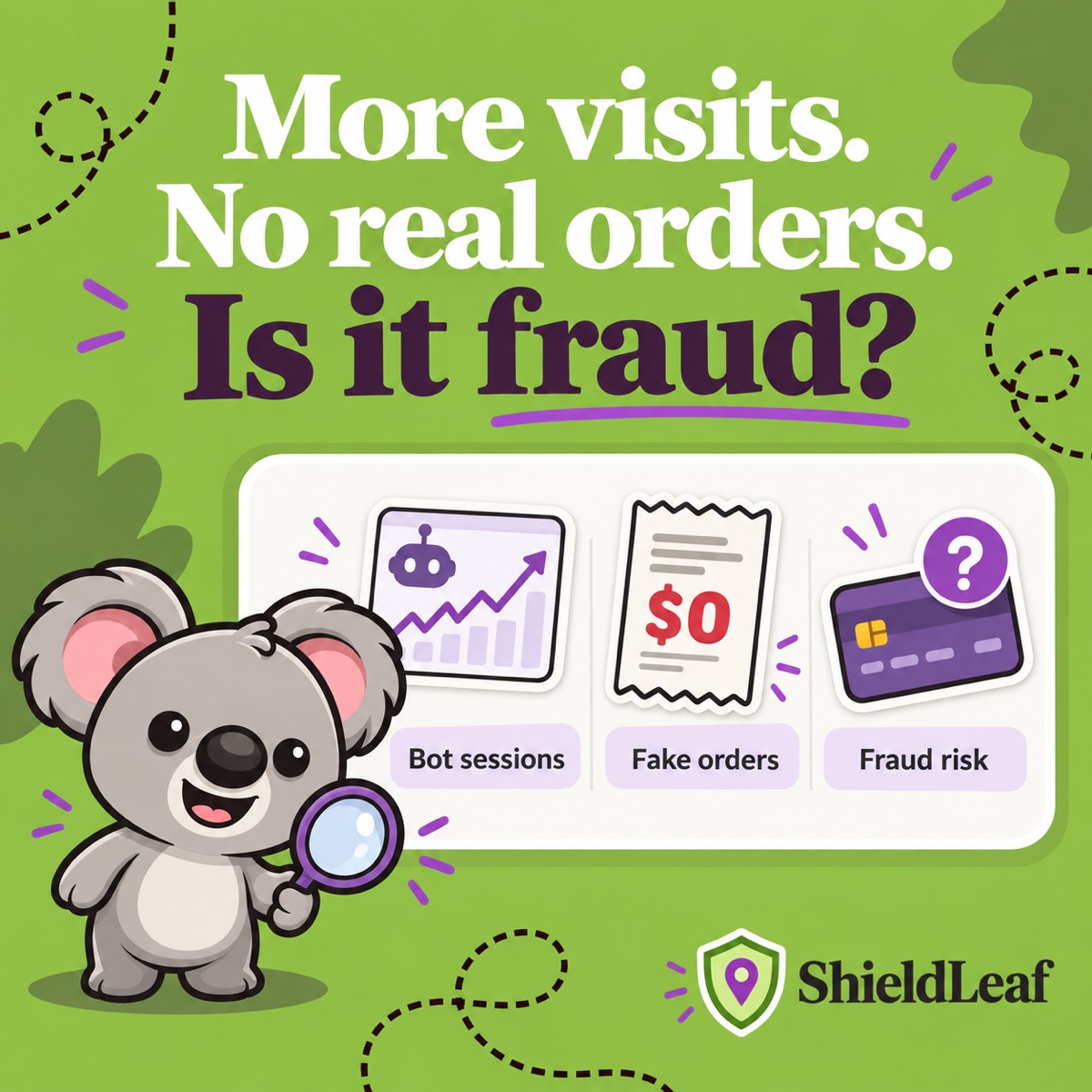
More visits without more sales can mean automated browsing. A burst of suspicious orders means someone or something is submitting checkouts. Payment fraud concerns the transaction itself. These signals can overlap, but a traffic spike alone does not tell you that a card was stolen or an order is fraudulent.
The useful next step is to find where the activity happens, then choose a response. When that investigation reveals recurring unwanted traffic from a country you do not serve, ShieldLeaf gives you a country rule you can preview and activate. You can address that online shop problem while reviewing suspicious orders separately.
Leafy’s Quick Answer
Check sessions in Analytics, suspicious orders in Orders, and payment risk in the order’s fraud analysis. If the unwanted visits repeatedly come from an unserved country, use ShieldLeaf to decide what those visitors see next.
Start with the signal you have actually observed
| Signal | What it tells you | First response |
|---|---|---|
| Bot sessions | Shopify has classified visits as probably automated | Compare the traffic pattern and countries |
| Suspected fake orders | Orders contain repeated, implausible, or unexpected details | Check the orders, products, and payment status |
| Payment fraud risk | An eligible order has transaction risk indicators or a fraud recommendation | Review Shopify’s analysis before fulfilment |
| Recurring unwanted country traffic | The access problem has a geographic pattern | Preview a focused ShieldLeaf country rule |
A crawler can visit without ordering. Automated checkout abuse can create orders. A person can also place a fraudulent order without causing a noticeable session spike. Country is useful for deciding access, but it does not establish an order’s legitimacy.
Check your reports before treating it as fraud
Open a sessions report in Analytics → Reports. Where supported, add Human or bot session and compare country, landing page, and referrer over the same dates. Check whether a campaign, publicity, or authorised testing explains the change.
Shopify’s September 2026 session-measurement update filters identified bot sessions out of session-related reports by default. It also changes how sessions are measured. Use periods after the update as your baseline and keep the filter setting consistent. A sessions or conversion-rate change across that boundary can reflect measurement changes even when total orders and sales stay steady.
Filtering helps you understand the visits. A ShieldLeaf rule is the next step when you have decided that visitors from a particular country should receive a blocked page or redirect.
Investigate suspicious-looking orders individually
Shopify lists bursts of free orders, repeated suspicious customer details, and unusual customer-profile creation among its possible signs of bot activity. They are clues to investigate.
For example, an unexpected run of £0 orders might come from an accidentally available free product. Check the product price, discounts, order details, and payment status before assuming abuse. Shopify also warns that suspected card-testing attempts might not appear as abandoned checkouts, so an empty checkout list does not settle the question.
For an eligible credit-card order, open Orders, select the order, and review Order risk. Shopify’s fraud-analysis guidance explains that available indicators can include address verification, card security-code checks, and unusual device or network activity. Consider the overall recommendation and next step rather than deciding from one location mismatch.
Some orders, including free orders, do not receive a fraud recommendation. Investigate suspicious activity before fulfilment, and involve your payment provider when the concern is repeated payment attempts or card testing. Keep that review alongside your country-access decision.
Turn the country pattern into a ShieldLeaf rule
Suppose your check shows repeated unwanted sessions from one country outside your customer market. Orders from your served markets look normal. The action you need is a online shop boundary for that country.
In ShieldLeaf:
- Enable the ShieldLeaf app embed in your Shopify theme.
- Open Blocked countries and select the country you identified.
- Under Blocked visitor experience, choose Show a blocked-access page and write a clear message. Choose a redirect instead when you have a useful alternative destination.
- Use the private preview to check the experience before turning protection on.
- Activate protection. If your plan includes activity logs, review recent blocked visits to confirm that the selected rule is matching traffic.
The Free plan includes one active blocked country, blocked-page or redirect handling, and preview. Pro adds unlimited countries, country groups and presets, plus activity logs. Normal setup needs no theme-code edits. These controls let you start with the country your investigation identified and expand when there is evidence for it.
The rule applies to visitors from that country, including legitimate shoppers there. Choose a country you have a clear reason to exclude. Continue reviewing transaction risk on its own evidence, and remember that location detection can be affected by VPNs or proxies.
Your immediate win is a tested blocked experience for the unwanted region. ShieldLeaf turns a recurring country pattern into a manageable online shop decision: choose the country, preview the outcome, then put the rule to work.