A sudden Shopify traffic spike can come from a campaign, a shared link, automated visits, or a change in how sessions are measured. Start by comparing the spike with a similar completed period, then check its source, country, and shopping activity. More sessions alone do not prove that more customers arrived.
When the increase comes from recurring unwanted traffic in a country you do not serve, the useful outcome is a tested access rule. ShieldLeaf lets you choose that country and preview what those visitors will see before protection goes live.
Leafy’s Quick Answer
Find when the spike started, check what changed, and isolate the country behind the increase. Keep useful traffic welcome; turn an unwanted regional pattern into a focused ShieldLeaf rule.
1. Establish a comparable baseline
In Analytics → Reports, open Sessions over time. Compare a completed day with a similar day, or the same elapsed hours if the spike is happening now. Write down the start time. A partial morning compared with a full day can send you in the wrong direction.
Check whether a campaign, email, product launch, publicity, or authorised test started then. Shopify’s acquisition reports cover Online Store sessions. Use the Analytics overview alongside them to review orders and sales for the same period.
There is also a recent measurement boundary. Shopify’s September 21–23, 2026 update changed session measurement and filters identified bot sessions out by default. Some sessions without pageviews are now counted. Orders, sales, and customer totals are unaffected. Use periods after the update as your session baseline and keep the Human or bot session filter consistent where it is available.
2. Find the slice that explains the jump
Check Sessions by location, Sessions by referrer, and the landing pages attracting the extra visits. Look for the country or source responsible for most of the increase.
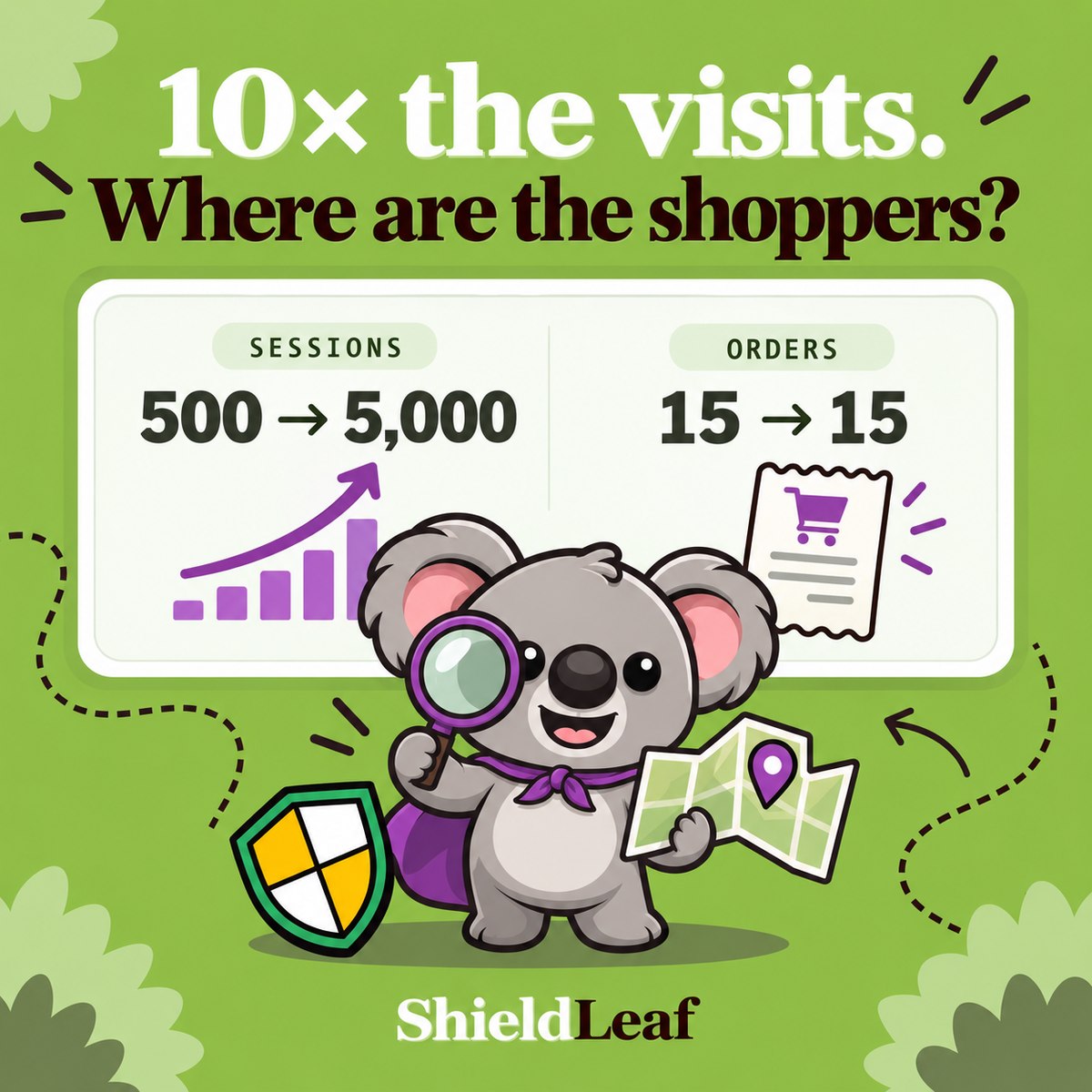
For example, suppose your completed-day comparison looks like this. These are illustrative figures, with the same report settings on both days.
| Measure | Comparable day | Spike day |
|---|---|---|
| Sessions | 500 | 5,000 |
| Orders | 15 | 15 |
| Sessions from one unserved country | 20 | 4,520 |
The country accounts for the entire 4,500-session increase. That gives you something concrete to investigate before changing your product pages or offers. Check its referrers and landing pages, whether the pattern repeats, and whether that region normally brings customers worth serving.
Shopify lists sudden session spikes among possible signs of bot activity. A burst can also follow legitimate publicity or testing. Compare human and bot classifications where the report supports them. Shopify’s bot-filtering guidance explains that classification is conservative, so a human label alone does not settle the question.
3. Turn the finding into a ShieldLeaf rule
In the example, suppose no campaign explains the jump, the unwanted pattern keeps returning, and you have no customer market in that country. You have enough reason to decide how visitors from that region should be handled, without needing to identify every individual visit as a bot.
Use ShieldLeaf’s Protection workspace to put that decision into practice:
- Enable the ShieldLeaf app embed in your Shopify theme. Normal setup needs no theme-code edits.
- Open Blocked countries, search for the country you identified, and select it.
- Under Blocked visitor experience, choose Show a blocked-access page. Use a clear message such as “Access from your region is not available on this store.” Choose a redirect when you have a useful alternative destination.
- Use the private preview to check the visitor experience.
- Turn protection on once the preview matches your decision.
These controls are shown on the current ShieldLeaf product page. The Free plan includes one active blocked country, blocked-page or redirect handling, and preview. That makes the single-country pattern above a practical place to start. Pro adds unlimited countries, groups and presets, and activity logs for blocked visits.
If the investigation instead reveals a useful campaign or shared link, keep those visitors welcome. Apply the country rule when your evidence supports the access decision.
4. Check the result you set out to achieve
Record the country, the reason for the rule, and the activation time. Confirm that the preview shows your chosen blocked page or redirect. If your plan includes activity logs, review recent blocked visits after activation to check that the selected country is matching.
Compare subsequent periods using the same report settings and keep watching orders in the markets you serve. An arrival can still appear in Analytics before the blocked experience is shown. Judge the rule by the visitor handling you tested rather than requiring every reported session to disappear.
A country rule covers legitimate visitors from that country too, so choose a region you have a clear reason to exclude. Keep that decision specific as traffic changes.
The spike now has a cause to investigate and an action you can test. ShieldLeaf turns the unwanted country pattern into a storefront rule you control.